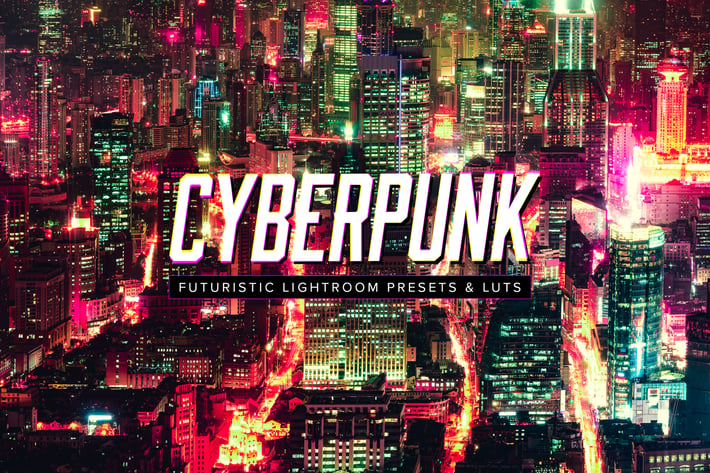
10 Cyberpunk Lightroom Presets & LUTs
Author
sparklestock
Published
Jan 11, 2021
Item Code
0a0ad8c4-a897-4d38-bb71-a5d921c19d8a
How to Download
- 1 Copy the Item Code above
- 2 Go to fuckdcma.com
- 3 Paste the code in the text box and click "Generate Download Link"
About This Item
Give your photos the cyberpunk look with these Lightroom presets and LUTs! These presets are specifically made for night-time architecture photos and they're the perfect way to give your photos the retrofuturistism vibe.
What You'll Get
10 Fadeable Lighroom Presets
10 Fast-Render LUTs
10 High Quality LUTs
✔ Fadeable Lightroom Presets
Don't be stuck with one look. These presets come in five variations from light to strong so that you can pick the perfect amount to add to your photo.
✔ Lightweight and Fast
These presets have been optimized for performance. By minimizing the amount of settings, they much faster and it's easier to edit. Best of all, any white balance and exposure fixes you made are preserved - the presets don't touch those crucial settings.
✔ Fully Compatible with LR Toolkit
These presets can be modified and used in conjunction with LR Toolkit. LR Toolkit is the best workflow system for Lightroom and it makes it easy for you to customize the presets. You can adjust the fade, create HDR looks, boost colors, and a lot more. More information can be found at
How to Install Lightroom Presets
1. In Lightroom, go to Edit Preferences (Lightroom Preferences on Macs).
2. Go to the Presets tab then click the "Show Lightroom Presets Folder" button.
3. Copy the "Cyberpunk by SparkleStock" folder into your LightroomDevelop Presets folder. Restart Lightroom. The presets will appear in the Presets panel located in the Develop module.
How to Use LUTs in Photoshop CC
1. Go to Layer New Adjustment Layer Color Lookup.
2. Click on the 3DLUT file dropdown menu then select "Load 3D LUT...".
3. Browse for the .CUBE file then click Load.
Notes:
To use the LUTs in Photoshop CC, go to Layer New Adjustment Layer Color Lookup. In the "3DLUT file" dropdown, select "Load 3DLUT". Browse for the .CUBE file then click Load.
These presets specially designed for night-time architecture photos. Some presets are only suitable for portraits and skin tones at a lower opacity setting.
LUTs can only emulate the color grading. They cannot reproduce the Clarity and Dehaze settings used in the Lightroom presets.
The Fast-Render LUTs are recommended for video projects. They process faster with minimal difference compared to the HQ LUTs.
Works With:
Lightroom CC 2015 - 2017
Lightroom Classic CC (All Versions)
All software that supports LUTs (including Photoshop CC, Affinity Photo, Adobe Premiere CC, Adobe After Effects CC, etc.) Mac and Windows
What You'll Get
10 Fadeable Lighroom Presets
10 Fast-Render LUTs
10 High Quality LUTs
✔ Fadeable Lightroom Presets
Don't be stuck with one look. These presets come in five variations from light to strong so that you can pick the perfect amount to add to your photo.
✔ Lightweight and Fast
These presets have been optimized for performance. By minimizing the amount of settings, they much faster and it's easier to edit. Best of all, any white balance and exposure fixes you made are preserved - the presets don't touch those crucial settings.
✔ Fully Compatible with LR Toolkit
These presets can be modified and used in conjunction with LR Toolkit. LR Toolkit is the best workflow system for Lightroom and it makes it easy for you to customize the presets. You can adjust the fade, create HDR looks, boost colors, and a lot more. More information can be found at
How to Install Lightroom Presets
1. In Lightroom, go to Edit Preferences (Lightroom Preferences on Macs).
2. Go to the Presets tab then click the "Show Lightroom Presets Folder" button.
3. Copy the "Cyberpunk by SparkleStock" folder into your LightroomDevelop Presets folder. Restart Lightroom. The presets will appear in the Presets panel located in the Develop module.
How to Use LUTs in Photoshop CC
1. Go to Layer New Adjustment Layer Color Lookup.
2. Click on the 3DLUT file dropdown menu then select "Load 3D LUT...".
3. Browse for the .CUBE file then click Load.
Notes:
To use the LUTs in Photoshop CC, go to Layer New Adjustment Layer Color Lookup. In the "3DLUT file" dropdown, select "Load 3DLUT". Browse for the .CUBE file then click Load.
These presets specially designed for night-time architecture photos. Some presets are only suitable for portraits and skin tones at a lower opacity setting.
LUTs can only emulate the color grading. They cannot reproduce the Clarity and Dehaze settings used in the Lightroom presets.
The Fast-Render LUTs are recommended for video projects. They process faster with minimal difference compared to the HQ LUTs.
Works With:
Lightroom CC 2015 - 2017
Lightroom Classic CC (All Versions)
All software that supports LUTs (including Photoshop CC, Affinity Photo, Adobe Premiere CC, Adobe After Effects CC, etc.) Mac and Windows
More from sparklestock
View all →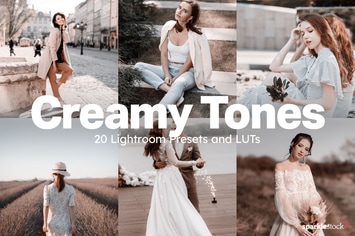
20 Creamy Lightroom Presets and LUTs
by sparklestock
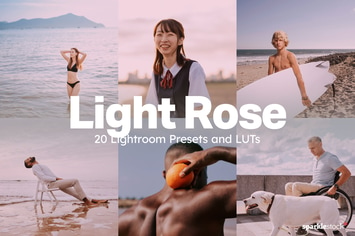
20 Light Rose Lightroom Presets and LUTs
by sparklestock
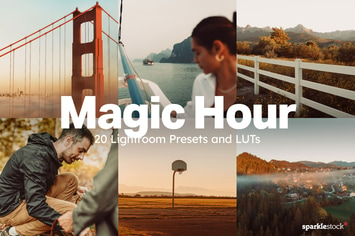
20 Magic Hour Lightroom Presets and LUTs
by sparklestock
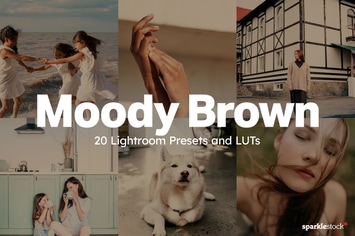
20 Moody Brown Lightroom Presets and LUTs
by sparklestock

20 Uncharted Lightroom Presets and LUTs
by sparklestock
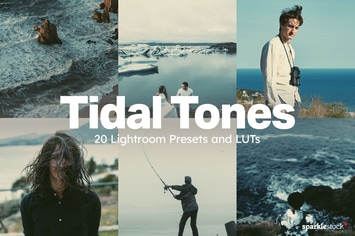
20 Tidal Tones Lightroom Presets and LUTs
by sparklestock
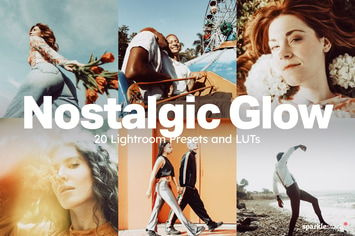
20 Nostalgic Glow Lightroom Presets and LUTs
by sparklestock

20 Kindred Lightroom Presets and LUTs
by sparklestock
You May Also Like

Shimmer Photoshop Action
by sevenstyles

Firestorm Photoshop Action
by sevenstyles
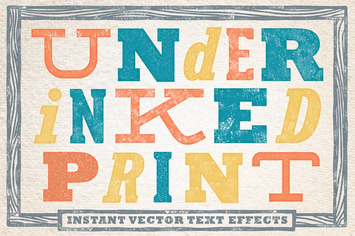
Under-Inked Print - Instant Vector Text Effects
by JRChild

Vintage Text Effects
by Sko4
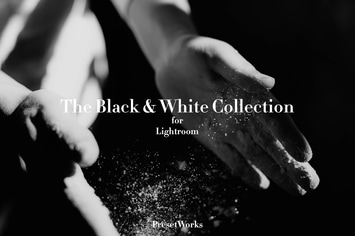
Black & White Lightroom Presets
by Presetworks
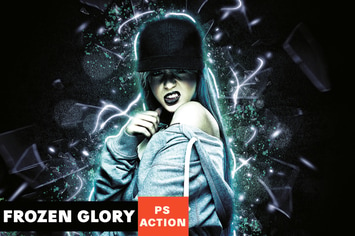
Frozen Glory Photoshop Action
by AB-TheDesigner
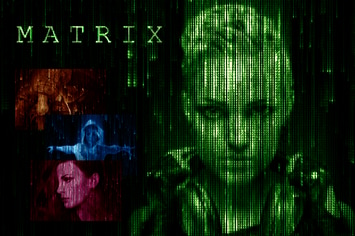
Matrix Code CS3+ Photoshop Action
by FD-Design
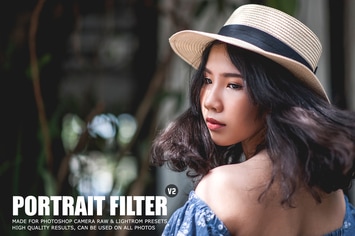
Pro Portrait Lightroom Presets Ver. 2
by creativetacos