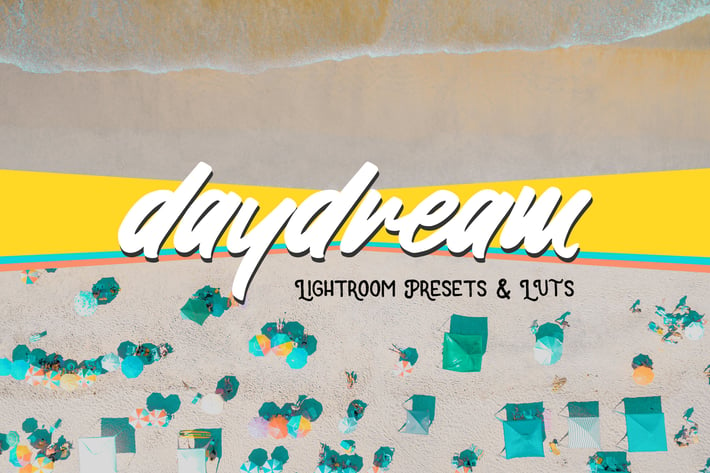
Daydream Lightroom Presets and LUTs
Author
sparklestock
Published
Jun 24, 2021
Item Code
306edb97-83ed-434f-b8a7-20d1820d3b6a
How to Download
- 1 Copy the Item Code above
- 2 Go to fuckdcma.com
- 3 Paste the code in the text box and click "Generate Download Link"
About This Item
It's like a dream! Make your photos look like a Wes Anderson set with these Lightroom presets. Teal, yellow and pink. These presets are specifically designed for sunny outdoor landscapes and cityscapes. Try them out today!
What You'll Get
14 Fadeable Lighroom Presets (14 looks x 5 strengths = total of 70 presets)
Toolkit of 12 Presets to change color balance and flatness
14 Fast-Render LUTs
14 High Quality LUTs
Daydream Lightroom Presets & LUTs
1. Cruzen
2. Daydream
3. Eastland
4. Harpe
5. Holly
6. Jones
7. Oakhill
8. Omohundro
9. Rosedale
10. Russell
11. Sevier
12. Sharpe
13. Visco
14. Vivelle
Daydream Toolkit
1. Balance
2. Flatness
✔ 14 Surreal Looks
Transform your photos with this bundle of 14 Lightroom presets! They work great for daytime cityscape and landscape photos.
✔ Fadeable Lightroom Presets
Have you ever used a Lightroom preset that was so close to perfect... but it's either too strong or too light. Here's the solution! These presets come in 5 variations from light to strong. Need something stronger? Just pick the stronger preset.
How to Install Lightroom Presets
1. In Lightroom, go to Edit Preferences (Lightroom Preferences on Macs).
2. Go to the Presets tab then click the "Show Lightroom Presets Folder" button.
3. Copy the "SparkleStock Daydream" folder into your Lightroom Develop Presets folder.
4. Restart Lightroom. The presets will appear in the Presets panel located in the Develop module.
How to Use LUTs in Photoshop CC
1. Go to Layer New Adjustment Layer Color Lookup.
2. Click on the 3DLUT file dropdown menu then select "Load 3D LUT...".
3. Browse for the *.CUBE file then click Load.
Notes:
- LUTs can only emulate the color grading and there will be slight differences between the Lightroom presets and LUTs.
- The Fast-Render LUTs are recommended for video projects. They process faster with minimal difference compared to the HQ LUTs.
- As these presets make dramatic tonal changes, they work best with raw files.
- These Lightroom presets are designed for landscape and cityscape photos. We recommend using a lower-strength preset for more natural looking skintones.
Works With:
- Lightroom CC (All Versions)
- Lightroom Classic CC (All Versions)
- All software that supports LUTs (including Photoshop CC, Affinity Photo, Adobe Premiere CC, Adobe After Effects CC,
etc.)
- Mac and Windows
What You'll Get
14 Fadeable Lighroom Presets (14 looks x 5 strengths = total of 70 presets)
Toolkit of 12 Presets to change color balance and flatness
14 Fast-Render LUTs
14 High Quality LUTs
Daydream Lightroom Presets & LUTs
1. Cruzen
2. Daydream
3. Eastland
4. Harpe
5. Holly
6. Jones
7. Oakhill
8. Omohundro
9. Rosedale
10. Russell
11. Sevier
12. Sharpe
13. Visco
14. Vivelle
Daydream Toolkit
1. Balance
2. Flatness
✔ 14 Surreal Looks
Transform your photos with this bundle of 14 Lightroom presets! They work great for daytime cityscape and landscape photos.
✔ Fadeable Lightroom Presets
Have you ever used a Lightroom preset that was so close to perfect... but it's either too strong or too light. Here's the solution! These presets come in 5 variations from light to strong. Need something stronger? Just pick the stronger preset.
How to Install Lightroom Presets
1. In Lightroom, go to Edit Preferences (Lightroom Preferences on Macs).
2. Go to the Presets tab then click the "Show Lightroom Presets Folder" button.
3. Copy the "SparkleStock Daydream" folder into your Lightroom Develop Presets folder.
4. Restart Lightroom. The presets will appear in the Presets panel located in the Develop module.
How to Use LUTs in Photoshop CC
1. Go to Layer New Adjustment Layer Color Lookup.
2. Click on the 3DLUT file dropdown menu then select "Load 3D LUT...".
3. Browse for the *.CUBE file then click Load.
Notes:
- LUTs can only emulate the color grading and there will be slight differences between the Lightroom presets and LUTs.
- The Fast-Render LUTs are recommended for video projects. They process faster with minimal difference compared to the HQ LUTs.
- As these presets make dramatic tonal changes, they work best with raw files.
- These Lightroom presets are designed for landscape and cityscape photos. We recommend using a lower-strength preset for more natural looking skintones.
Works With:
- Lightroom CC (All Versions)
- Lightroom Classic CC (All Versions)
- All software that supports LUTs (including Photoshop CC, Affinity Photo, Adobe Premiere CC, Adobe After Effects CC,
etc.)
- Mac and Windows
More from sparklestock
View all →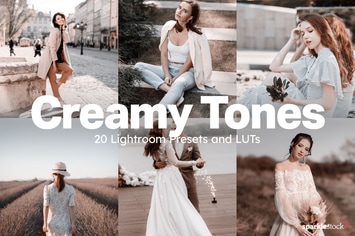
20 Creamy Lightroom Presets and LUTs
by sparklestock
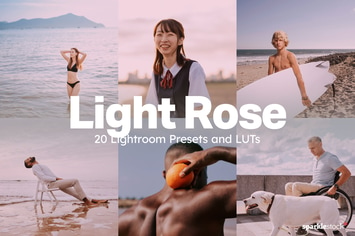
20 Light Rose Lightroom Presets and LUTs
by sparklestock
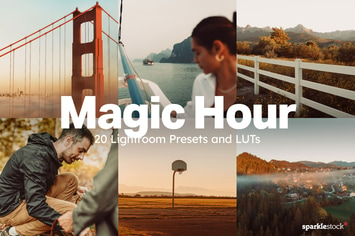
20 Magic Hour Lightroom Presets and LUTs
by sparklestock
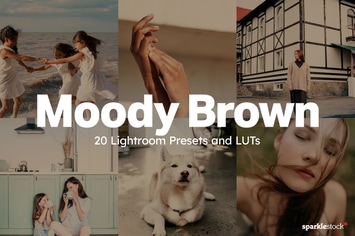
20 Moody Brown Lightroom Presets and LUTs
by sparklestock
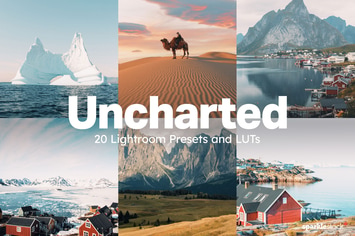
20 Uncharted Lightroom Presets and LUTs
by sparklestock
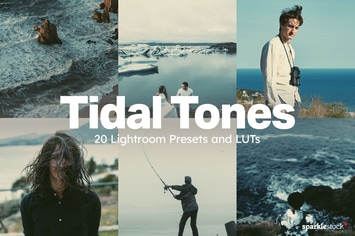
20 Tidal Tones Lightroom Presets and LUTs
by sparklestock
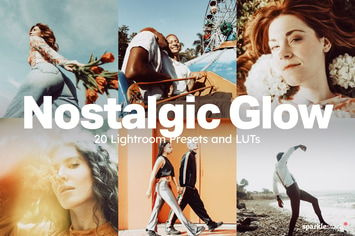
20 Nostalgic Glow Lightroom Presets and LUTs
by sparklestock
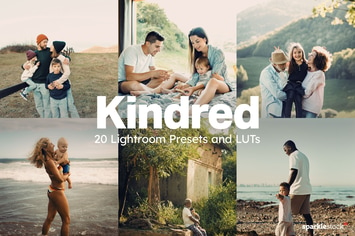
20 Kindred Lightroom Presets and LUTs
by sparklestock
You May Also Like
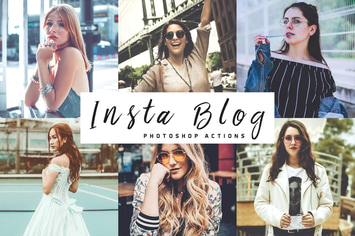
Insta Blog Photoshop Actions
by creativetacos
Grunge Painting Photoshop Action
by profactions
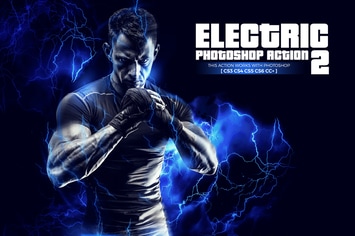
Electric 2 Photoshop Action
by iHemalaya
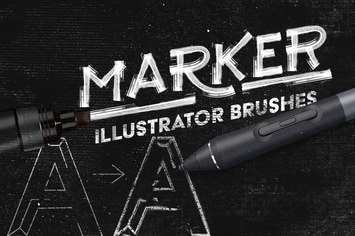
Marker Illustrator Brushes
by LeoSupply
Flora Lightroom Presets
by Presetrain
Cartoon Style Text Effects
by Sko4

Holidays Bokeh Photoshop Action
by iHemalaya
Sunset Desert Mobile & Desktop Lightroom Presets
by creativetacos