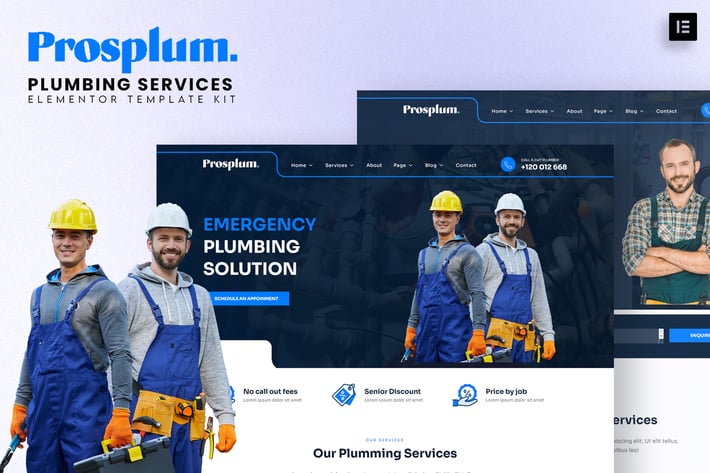
Prosplum - Plumbing Services Elementor Template Kit
Author
onecontributor
Published
Oct 04, 2024
Item Code
07c2a9f0-bfe2-4fd8-bfa7-81cece472757
How to Download
- 1 Copy the Item Code above
- 2 Go to fuckdcma.com
- 3 Paste the code in the text box and click "Generate Download Link"
About This Item
Prosplum is a modern Plumbing Services Elementor Template Kit to create a professional and fully functional WordPress-based website without a single line of coding. Prosplum is fully responsive & retina-ready and equipped with several features to obtain, such as a template that will be the perfect starting point for any Plumber, Pipe, Leak, Faucet, Drain, Toilet, Sink, Water heater, Shower, Bathroom, Plumbing repair, Plumbing installation, Plumbing inspection, Plumbing maintenance and Plumbing emergencies.
This template kit includes stunning carefully crafted 20+ stunning templates, you can build your professional website just a click away
Features:
Modern & Clean Design
10+ Ready to use templates
Fully Responsive Layout
Retina Ready
Fully Customizable
Cross Browser Compatibility: Chrome, Firefox, Safari, Opera
Templates Include:
Home 01
Home 02
About
Services
Services Detail
Pricing
Testimonial
FAQ
Team
404
Blog
Single Post
Contact
Header
Footer
Global Theme Style
Required Plugin:
ElementsKit Lite
Jeg Elementor Kit
MetForm
Table Addons for Elementor
How to Install:
1. Install and Activate the “Envato Elements” plugin from Plugins > Add New in WordPress
2. Do not unzip
3. Go to Elements > Installed Kits and click the Upload Template Kit button.
4. Before importing a template, ensure the Install Requirements button is clicked to activate required plugins
5. For best results, do not import more than one template at a time.
6. Go to Pages and create a new page and click Edit with Elementor
7. Click the gear icon at lowerleft of the builder to view page settings and choose Elementor Full Width and hide page title
8. Click the gray folder icon to access My Templates tab and then Import the page you’d like to customize
How to Import Metforms
1. Import the metform block templates
2. Import the page template where the form appears and right-click to enable the Navigator
3. Locate and select the Metform widget and click Edit Form. Choose New, then Edit Form. The builder will appear
4. Click ‘Add Template’ grey folder icon.
5. Click ‘My Templates’ tab.
6. Choose your imported metform template, then click ‘Insert’ (click No for page settings).
7. Once the template is loaded, make any desired customizations and click ‘Update & Close’ The form will appear in the template
8. Click Update
Setup Global Header and Footer in ElementsKit
1. Import the header and footer template
2. Go to ElementsKit > Header Footer and click Add New (if prompted with a wizard, you may click Next thraaaaaaaaaaaaough it without taking any action)
3. Title the header, leave Entire Site selected and toggle Activation to On
4. Click the gray Edit Content button to load the builder
5. Click the gray folder icon and select the header template to import, select your menu in the nav element and click Update.
6. Repeat for Footer
Images:
This Template Kit uses demo images from Envato Elements. You will need to license these images from Envato Elements to use them on your website, or you can substitute them with you
This template kit includes stunning carefully crafted 20+ stunning templates, you can build your professional website just a click away
Features:
Modern & Clean Design
10+ Ready to use templates
Fully Responsive Layout
Retina Ready
Fully Customizable
Cross Browser Compatibility: Chrome, Firefox, Safari, Opera
Templates Include:
Home 01
Home 02
About
Services
Services Detail
Pricing
Testimonial
FAQ
Team
404
Blog
Single Post
Contact
Header
Footer
Global Theme Style
Required Plugin:
ElementsKit Lite
Jeg Elementor Kit
MetForm
Table Addons for Elementor
How to Install:
1. Install and Activate the “Envato Elements” plugin from Plugins > Add New in WordPress
2. Do not unzip
3. Go to Elements > Installed Kits and click the Upload Template Kit button.
4. Before importing a template, ensure the Install Requirements button is clicked to activate required plugins
5. For best results, do not import more than one template at a time.
6. Go to Pages and create a new page and click Edit with Elementor
7. Click the gear icon at lowerleft of the builder to view page settings and choose Elementor Full Width and hide page title
8. Click the gray folder icon to access My Templates tab and then Import the page you’d like to customize
How to Import Metforms
1. Import the metform block templates
2. Import the page template where the form appears and right-click to enable the Navigator
3. Locate and select the Metform widget and click Edit Form. Choose New, then Edit Form. The builder will appear
4. Click ‘Add Template’ grey folder icon.
5. Click ‘My Templates’ tab.
6. Choose your imported metform template, then click ‘Insert’ (click No for page settings).
7. Once the template is loaded, make any desired customizations and click ‘Update & Close’ The form will appear in the template
8. Click Update
Setup Global Header and Footer in ElementsKit
1. Import the header and footer template
2. Go to ElementsKit > Header Footer and click Add New (if prompted with a wizard, you may click Next thraaaaaaaaaaaaough it without taking any action)
3. Title the header, leave Entire Site selected and toggle Activation to On
4. Click the gray Edit Content button to load the builder
5. Click the gray folder icon and select the header template to import, select your menu in the nav element and click Update.
6. Repeat for Footer
Images:
This Template Kit uses demo images from Envato Elements. You will need to license these images from Envato Elements to use them on your website, or you can substitute them with you
More from onecontributor
View all →
Ginsta - Cloud Hosting Company Elementor Template Kit
by onecontributor

Raymond - Freelancer Personal Portofolio Elementor Template Kit
by onecontributor

Golink - Broadband & Internet Service Provider Template Kit
by onecontributor

Charles - CV Resume Elementor Template Kit
by onecontributor

Autous - Aerial Photography & Videography Elementor Template Kit
by onecontributor

Keyrank - SEO & Digital Marketing Agency Template Kit
by onecontributor

Pet Cute - Pet Care & Veterinary Elementor Template Kit
by onecontributor
Medika - Alternative Medicine Website Elementor Template Kit
by onecontributor
You May Also Like

Vivian - Creative Multi-Purpose Theme
by subsolar
Soccer Club - Football Team WordPress Theme
by axiomthemes
Niobe - Spa & Salon WordPress Theme
by ovatheme
Copycat Protector for WordPress
by merkulove

Nazareth
by axiomthemes
NEX-Forms - Form to Post/Page Add-on
by Basix
BXSCO - Business Multipurpose Elementor Template Kit
by themesflat
Oxary – News & Magazine Elementor Template Kit
by jegtheme