
Truspax - Insurance Agency Elementor Template Kit
Author
Evonicmedia
Published
Apr 25, 2025
Item Code
dfacb9bb-8459-4d80-9689-5f08250a16a6
How to Download
- 1 Copy the Item Code above
- 2 Go to fuckdcma.com
- 3 Paste the code in the text box and click "Generate Download Link"
About This Item
Truspax is a sleek and modern Elementor template kit tailored specifically for insurance companies. This user-friendly kit offers a range of customizable templates, including homepages, service pages, and contact forms, designed to enhance your online presence. With its clean design, responsive layout, and easy integration with WordPress, Truspax provides a professional and polished solution for showcasing your insurance services. Perfect for agencies looking to build trust and credibility, this kit ensures a seamless and engaging user experience.
#### Feature
Individual elements can be fine-tuned or fonts and colors can be changed all in one spot.
Drag-and-drop visual builder for true no-code customization.
Design that is both contemporary and professional.
Fast-loading.
Most Elementor themes are compatible with this templatekit.
#### Templates Include:
Home
About
Services
Case Studies
Case Study Details
Contact
Team
Testimonials
Pricing
Blogs
Blogs Detail
Faq
Coming Soon
404
#### Sections and Blocks:
Contact Form
Message Form
Newsletter Form
Quote Form
#### Required Plugins Pre-Installed With the Kit
Elementor
Happy Elementor Addons
Jeg Elementor Kit
Metform
How to Use Template Kits:
This is not a WordPress Theme. Template kits contain the design data for Elementor only and are installed using the envato Elements plugin for WordPress or directly through Elementor.
Elementor Template Kits use the Envato Elements plugin to install.
Detailed Guide:
For further support, go to Elementor > Get Help in WordPress menu.
#### Importing Metforms: What You Need to Know
1. The metform block templates should be imported.
2. Import the page template with the form on it and enable the Navigator by right-clicking.
3. Click Edit Form after locating and selecting the Metform widget. Then select New and Edit Form from the drop-down menu. The function Object() { [native code] } will show up.
4. Select the grey folder icon that says 'Add Template'.
5. Select the 'My Templates' option from the drop-down menu.
6. Then click 'Insert' after selecting your imported metform template (click No for page settings).
7. After you've finished customizing the template, click 'Update & Close.' In the template, the form will appear.
8. Update the information by clicking the button.
How to Import Metforms
If you have Elementor Pro, skip install of Metform and form blocks.
1. Import the metform block templates
2. Import the page template where the form appears and right-click to enable the Navigator
3. Locate and select the Metform widget and click Edit Form. Choose New, then Edit Form. The builder will appear
4. Click ‘Add Template’ grey folder icon.
5. Click ‘My Templates’ tab.
6. Choose your imported metform template, then click ‘Insert’ (click No for page settings).
7. Once the template is loaded, make any desired customizations and click ‘Update & Close’ The form will appear in the template
8. Click Update
How to setup header in Jeg Elementor Kit plugin
If you have Elementor Pro, headers and footers may be customized under Theme Builder.
1. Go to Jeg Elementor Kit menu item > Header Template
2. Click Add New Header
3. Add condition > All Site and click Create
4. Click the pencil icon to Edit and elementor will appear
5. Click gray folder icon to access My Templates tab
6. Insert the header template.
7. Customize and Save.
Images
Envato Elements demo pictures are used in this Template Kit. To use these photos on your website, you'll need to purchase a license from Envato Elements, or you can use your own.
#### Feature
Individual elements can be fine-tuned or fonts and colors can be changed all in one spot.
Drag-and-drop visual builder for true no-code customization.
Design that is both contemporary and professional.
Fast-loading.
Most Elementor themes are compatible with this templatekit.
#### Templates Include:
Home
About
Services
Case Studies
Case Study Details
Contact
Team
Testimonials
Pricing
Blogs
Blogs Detail
Faq
Coming Soon
404
#### Sections and Blocks:
Contact Form
Message Form
Newsletter Form
Quote Form
#### Required Plugins Pre-Installed With the Kit
Elementor
Happy Elementor Addons
Jeg Elementor Kit
Metform
How to Use Template Kits:
This is not a WordPress Theme. Template kits contain the design data for Elementor only and are installed using the envato Elements plugin for WordPress or directly through Elementor.
Elementor Template Kits use the Envato Elements plugin to install.
Detailed Guide:
For further support, go to Elementor > Get Help in WordPress menu.
#### Importing Metforms: What You Need to Know
1. The metform block templates should be imported.
2. Import the page template with the form on it and enable the Navigator by right-clicking.
3. Click Edit Form after locating and selecting the Metform widget. Then select New and Edit Form from the drop-down menu. The function Object() { [native code] } will show up.
4. Select the grey folder icon that says 'Add Template'.
5. Select the 'My Templates' option from the drop-down menu.
6. Then click 'Insert' after selecting your imported metform template (click No for page settings).
7. After you've finished customizing the template, click 'Update & Close.' In the template, the form will appear.
8. Update the information by clicking the button.
How to Import Metforms
If you have Elementor Pro, skip install of Metform and form blocks.
1. Import the metform block templates
2. Import the page template where the form appears and right-click to enable the Navigator
3. Locate and select the Metform widget and click Edit Form. Choose New, then Edit Form. The builder will appear
4. Click ‘Add Template’ grey folder icon.
5. Click ‘My Templates’ tab.
6. Choose your imported metform template, then click ‘Insert’ (click No for page settings).
7. Once the template is loaded, make any desired customizations and click ‘Update & Close’ The form will appear in the template
8. Click Update
How to setup header in Jeg Elementor Kit plugin
If you have Elementor Pro, headers and footers may be customized under Theme Builder.
1. Go to Jeg Elementor Kit menu item > Header Template
2. Click Add New Header
3. Add condition > All Site and click Create
4. Click the pencil icon to Edit and elementor will appear
5. Click gray folder icon to access My Templates tab
6. Insert the header template.
7. Customize and Save.
Images
Envato Elements demo pictures are used in this Template Kit. To use these photos on your website, you'll need to purchase a license from Envato Elements, or you can use your own.
More from Evonicmedia
View all →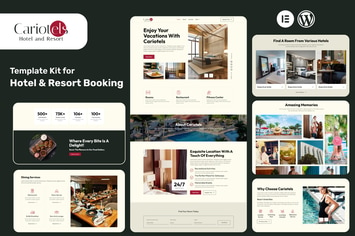
Cariotels – Luxury Hotel & Resort Elementor Template Kit
by Evonicmedia
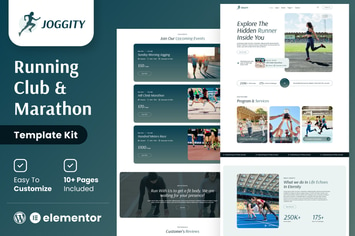
Joggity - Marathon Race & Running Elementor Template Kit
by Evonicmedia
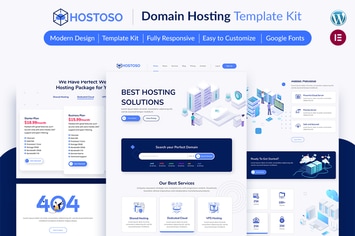
HOSTOSO - Hosting & Webhosting Service Template Kit
by Evonicmedia

UbikVR - Virtual Reality Services Elementor Template Kit
by Evonicmedia

DavidDean – Personal Portfolio & Resume Elementor Template Kit
by Evonicmedia

AVATION - Robotics & Artificial Intelligence Elementor Template Kit
by Evonicmedia

InventionAIs - AI Startups & Technology Elementor Template Kit
by Evonicmedia

Tripitika – Tourism & Travel Agency Elementor Template Kit
by Evonicmedia
You May Also Like

Artfurniture - Furniture Theme for WooCommerce
by Plaza-Themes

Tiger Claw
by ThemeREX
NEX-Forms - Digital Signatures Add-on
by Basix

Pick
by SoftHopper

HappyChild | Multi Store Responsive WordPress Them
by EngoTheme

Craftit Artisan Shopping Theme
by disgogo

Twitter Timeline Feed WordPress Plugin
by Odin_Design
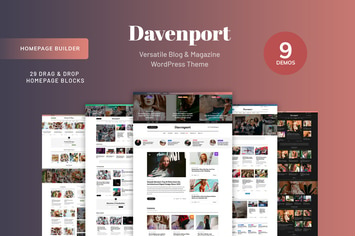
Davenport - Blog and Magazine WordPress theme
by Creanncy