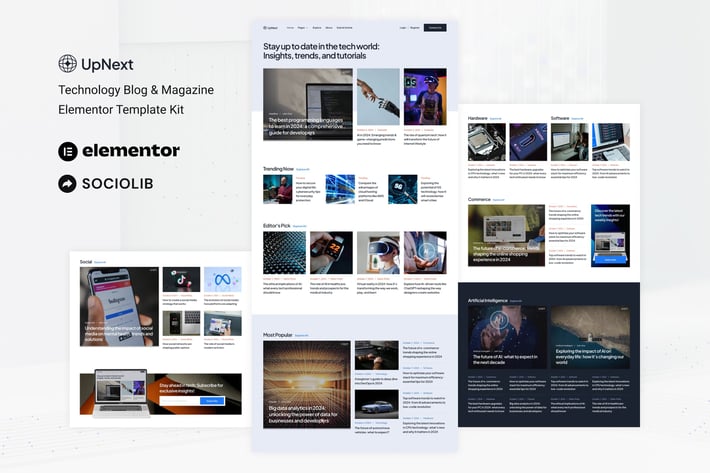
UpNext - Technology Blog & Magazine Elementor Template Kit
Author
sociolib
Published
Apr 05, 2025
Item Code
e6552de9-ed58-4bbb-9004-7ab72c057b37
How to Download
- 1 Copy the Item Code above
- 2 Go to fuckdcma.com
- 3 Paste the code in the text box and click "Generate Download Link"
About This Item
UpNext is an Elementor Template Kit for quickly and easily creating Technology Blog & Magazine website using the Elementor Page Builder plugin for WordPress. Suitable for Startup, Tech Review, Affiliate, Tech Portal, News Portal, Magazine Subscriptions, Tutorial Blog, etc. Style your wordpress website with this creative and modern webdesign style template kit to bring a modern feel to your blog.
Features:
13+ Templates
True no-code customization with drag and drop visual builder
Customize fonts and colors in one place or fine-tune on individual elements
Clean and Minimal Design
Fast-loading
Works with most Elementor themes
Responsive Design
Templates:
Home
Explore
About
Submit
Subscribe
Contact
Main Blog page
Post
Header
Footer
Contact Form
Submit Form
Subscribe Form
Global Style
Plugins (installed with kit)
ElementsKit Lite
Qi-Addons
Metform
How to Use Template Kits:
This is not a WordPress Theme. Template kits contain the design data for Elementor only and are installed using the envato Elements plugin for WordPress or directly through Elementor.
Elementor Template Kits use the Envato Elements plugin to install.
Detailed Guide:
For further support, go to Elementor > Get Help in WordPress menu.
Setup Global Header and Footer in ElementsKit Lite Header Footer Builder Plugin
If you have Elementor Pro, headers and footers may be customized under Theme Builder.
1. Import the header and footer template
2. Go to ElementsKit Lite > Header Footer and click Add New button
3. Give it a title and select Header, Display on Entire Site and click Publish
4. Click Edit with Elementor
5. Click the gray folder icon to access My Templates tab and select the header template to import and Update.
6. Repeat for Footer
How to Import Metforms
If you have Elementor Pro, skip install of Metform and form blocks.
1. Import the metform block templates
2. Import the page template where the form appears and right-click to enable the Navigator
3. Locate and select the Metform widget and click Edit Form. Choose New, then Edit Form. The builder will appear
4. Click ‘Add Template’ grey folder icon.
5. Click ‘My Templates’ tab.
6. Choose your imported metform template, then click ‘Insert’ (click No for page settings).
7. Once the template is loaded, make any desired customizations and click ‘Update & Close’ The form will appear in the template
8. Click Update
Images
This Template Kit uses demo images from Envato Elements. You will need to license these images from Envato Elements to use them on your website, or you can substitute them with your own. Post Content is not included in kits - you must have your own blog content created before it can be configured in post widgets.
Features:
13+ Templates
True no-code customization with drag and drop visual builder
Customize fonts and colors in one place or fine-tune on individual elements
Clean and Minimal Design
Fast-loading
Works with most Elementor themes
Responsive Design
Templates:
Home
Explore
About
Submit
Subscribe
Contact
Main Blog page
Post
Header
Footer
Contact Form
Submit Form
Subscribe Form
Global Style
Plugins (installed with kit)
ElementsKit Lite
Qi-Addons
Metform
How to Use Template Kits:
This is not a WordPress Theme. Template kits contain the design data for Elementor only and are installed using the envato Elements plugin for WordPress or directly through Elementor.
Elementor Template Kits use the Envato Elements plugin to install.
Detailed Guide:
For further support, go to Elementor > Get Help in WordPress menu.
Setup Global Header and Footer in ElementsKit Lite Header Footer Builder Plugin
If you have Elementor Pro, headers and footers may be customized under Theme Builder.
1. Import the header and footer template
2. Go to ElementsKit Lite > Header Footer and click Add New button
3. Give it a title and select Header, Display on Entire Site and click Publish
4. Click Edit with Elementor
5. Click the gray folder icon to access My Templates tab and select the header template to import and Update.
6. Repeat for Footer
How to Import Metforms
If you have Elementor Pro, skip install of Metform and form blocks.
1. Import the metform block templates
2. Import the page template where the form appears and right-click to enable the Navigator
3. Locate and select the Metform widget and click Edit Form. Choose New, then Edit Form. The builder will appear
4. Click ‘Add Template’ grey folder icon.
5. Click ‘My Templates’ tab.
6. Choose your imported metform template, then click ‘Insert’ (click No for page settings).
7. Once the template is loaded, make any desired customizations and click ‘Update & Close’ The form will appear in the template
8. Click Update
Images
This Template Kit uses demo images from Envato Elements. You will need to license these images from Envato Elements to use them on your website, or you can substitute them with your own. Post Content is not included in kits - you must have your own blog content created before it can be configured in post widgets.
More from sociolib
View all →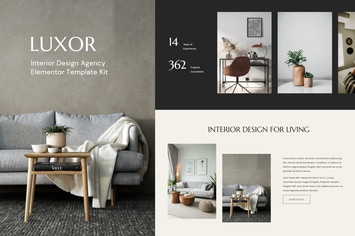
Luxor - Interior Design Agency Elementor Template Kit
by sociolib
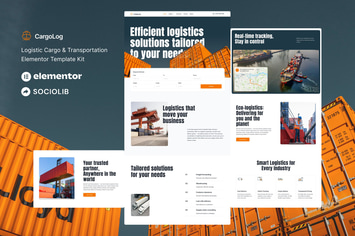
CargoLog - Logistic Cargo & Transportation Elementor Template Kit
by sociolib
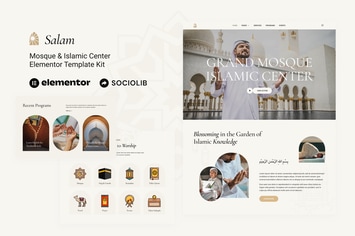
Salam - Mosque & Islamic Center Elementor Template Kit
by sociolib

Cybro - Cyber Security Services Elementor Template Kit
by sociolib

Investa - Investment & Business Opportunities Elementor Template Kit
by sociolib
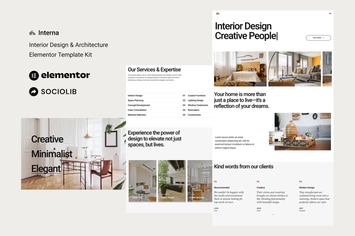
Interna - Interior Design & Architecture Elementor Template Kit
by sociolib
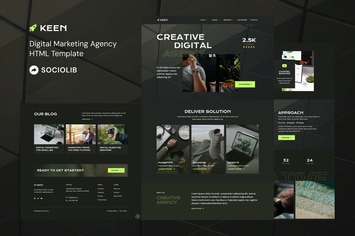
Keen - Digital Marketing Agency HTML Template
by sociolib

Synco - SaaS & Software Showcase Elementor Template Kit
by sociolib
You May Also Like
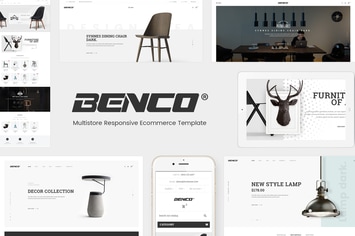
Benco - Responsive Furniture WooCommerce WordPress
by Plaza-Themes
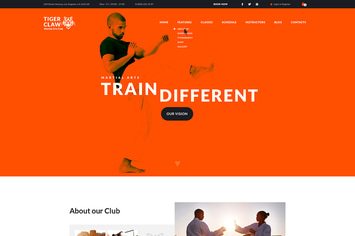
Tiger Claw
by ThemeREX
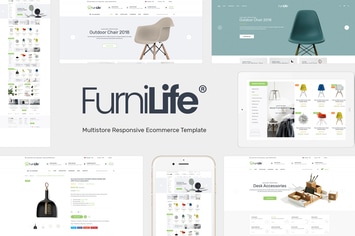
Furnilife - Furniture Theme WooCommerce WordPress
by roadthemes
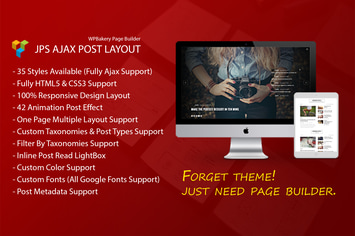
JPS Post Layout - Addon For WPBakery Page Builder
by beeteam368
WPBakery Page Intro - Addon for WPBakery
by ad-theme
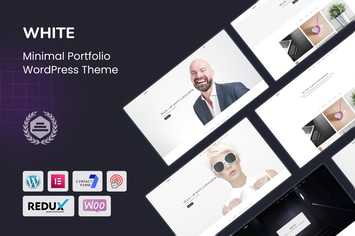
White – Minimal Portfolio WordPress Theme
by shtheme
Gwen
by bkninja

UniTravel | Travel Agency & Tourism Bureau WP
by AncoraThemes