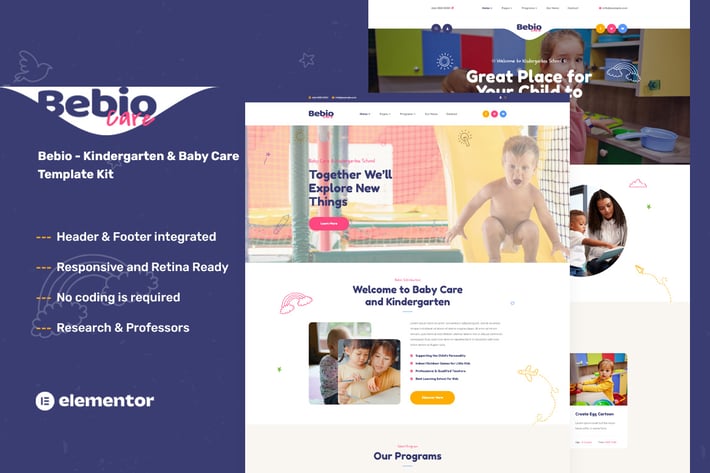
Bebio - Kindergarten & Baby Care Elementor Template Kit
Author
themesflat
Published
Nov 18, 2024
Item Code
dc386abf-ba53-4df7-82f2-d28e5c2b90f3
How to Download
- 1 Copy the Item Code above
- 2 Go to fuckdcma.com
- 3 Paste the code in the text box and click "Generate Download Link"
About This Item
## Bebio - Kindergarten & Baby Care Template Kit
Bebio is a Template Kit created for Kindergarten and Preschool. Build for a website kindergarten, childcare, pre-school, homeschooling, school, learning, playground businesses or any other related website. This template is packed with 10 different pages for your website, has a beautiful and unique design with a 100% responsive layout, retina-ready, and very easy to customize because using Elementor so you don’t need a single line of coding!
Bebio - Day Care & Kindergarten Template Kit is packed with powerful and intuitive features, providing endless possibilities, you can build a full education website in just a few clicks.
### Kit Key Features:
02 Awesome Homepage Versions.
No Coding Knowledge
Fully with Elementor free version ( Elementor Pro is not required )
Header & Footer Builder Included
One Click Demo Import
Unique and Modern Style.
Super Clear and Clean Layout
Cross browser compatible
Post Widget
Carousel Slide Box ( Create sliders with anything )
Responsive and Retina Ready
Compatible with most WordPress themes
Optimized for search engines
### Plugins installed with kit
Themesflat Addons For Elementor
MetForm
ElementsKit Lite
How to Install
Template Kits use the Envato Elements plugin to install to WordPress (no subscription required).
Detailed Guide:
How to Import Metforms
1. Import the metform block templates
2. Import the page template where the form appears and right-click to enable the Navigator
3. Locate and select the Metform widget and click Edit Form. Choose New, then Edit Form. The builder will appear
4. Click ‘Add Template’ grey folder icon.
5. Click ‘My Templates’ tab.
6. Choose your imported metform template, then click ‘Insert’ (click No for page settings).
7. Once the template is loaded, make any desired customizations and click ‘Update & Close’ The form will appear in the template
8. Click Update
Setup Global Header and Footer in ElementsKit
1. Import the header and footer template
2. Go to ElementsKit > Header Footer and click Add New (if prompted with a wizard, you may click Next through it without taking any action)
3. Title the header, leave Entire Site selected and toggle Activation to On
4. Click the gray Edit Content button to load the builder
5. Click the gray folder icon and select the header template to import, select your menu in the nav element and click Update.
6. Repeat for Footer
This Template Kit uses demo images from Envato Elements. You will need to license these images from Envato Elements to use them on your website, or you can substitute them with your own.
Bebio is a Template Kit created for Kindergarten and Preschool. Build for a website kindergarten, childcare, pre-school, homeschooling, school, learning, playground businesses or any other related website. This template is packed with 10 different pages for your website, has a beautiful and unique design with a 100% responsive layout, retina-ready, and very easy to customize because using Elementor so you don’t need a single line of coding!
Bebio - Day Care & Kindergarten Template Kit is packed with powerful and intuitive features, providing endless possibilities, you can build a full education website in just a few clicks.
### Kit Key Features:
02 Awesome Homepage Versions.
No Coding Knowledge
Fully with Elementor free version ( Elementor Pro is not required )
Header & Footer Builder Included
One Click Demo Import
Unique and Modern Style.
Super Clear and Clean Layout
Cross browser compatible
Post Widget
Carousel Slide Box ( Create sliders with anything )
Responsive and Retina Ready
Compatible with most WordPress themes
Optimized for search engines
### Plugins installed with kit
Themesflat Addons For Elementor
MetForm
ElementsKit Lite
How to Install
Template Kits use the Envato Elements plugin to install to WordPress (no subscription required).
Detailed Guide:
How to Import Metforms
1. Import the metform block templates
2. Import the page template where the form appears and right-click to enable the Navigator
3. Locate and select the Metform widget and click Edit Form. Choose New, then Edit Form. The builder will appear
4. Click ‘Add Template’ grey folder icon.
5. Click ‘My Templates’ tab.
6. Choose your imported metform template, then click ‘Insert’ (click No for page settings).
7. Once the template is loaded, make any desired customizations and click ‘Update & Close’ The form will appear in the template
8. Click Update
Setup Global Header and Footer in ElementsKit
1. Import the header and footer template
2. Go to ElementsKit > Header Footer and click Add New (if prompted with a wizard, you may click Next through it without taking any action)
3. Title the header, leave Entire Site selected and toggle Activation to On
4. Click the gray Edit Content button to load the builder
5. Click the gray folder icon and select the header template to import, select your menu in the nav element and click Update.
6. Repeat for Footer
This Template Kit uses demo images from Envato Elements. You will need to license these images from Envato Elements to use them on your website, or you can substitute them with your own.
More from themesflat
View all →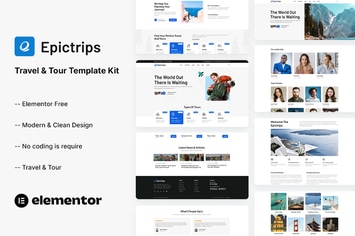
EpicTrips - Travel & Tour Elementor Template Kit
by themesflat
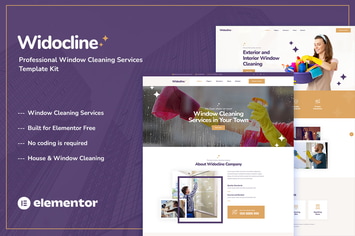
Widocline - Professional Window Cleaning Services Template Kit
by themesflat

Indro - Business Consulting Elementor Template Kit
by themesflat
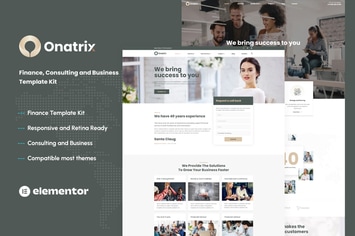
Onatrix - Finance Consulting & Business Elementor Template Kit
by themesflat

Xstar - Creative Agency & Portfolio WordPress Them
by themesflat
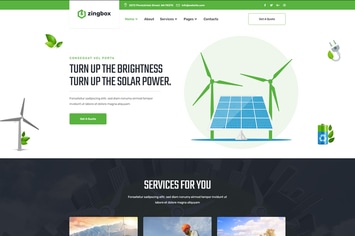
Zingbox – Wind & Solar Energy HTML Template
by themesflat

Rockie - Crypto Exchange HTML Template
by themesflat

ICOLand | NFT landing page & Crypto HTML Template
by themesflat
You May Also Like
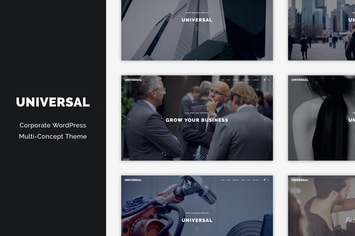
Universal - Corporate WordPress Multi-Concept Them
by DankovThemes

xPromoter - Top Bar Switcher Responsive WordPress
by LambertGroup
Seil - A Responsive WordPress Blog Theme
by VictorThemes

Cars4Rent
by axiomthemes
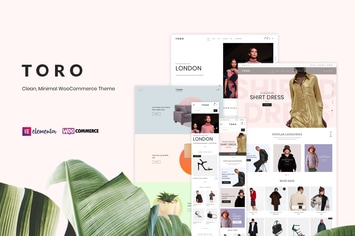
Toro - Clean, Minimal WooCommerce Theme
by LA-Studio
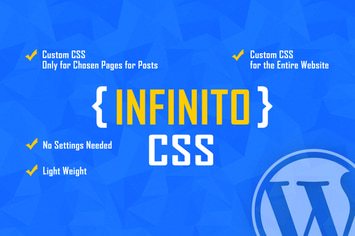
INFINITO - Custom CSS for Chosen Pages and Posts
by LambertGroup
Heavy - Industrial WordPress Theme
by cmsmasters

Fishing & Hunting Multipurpose WordPress Theme
by AA-Team