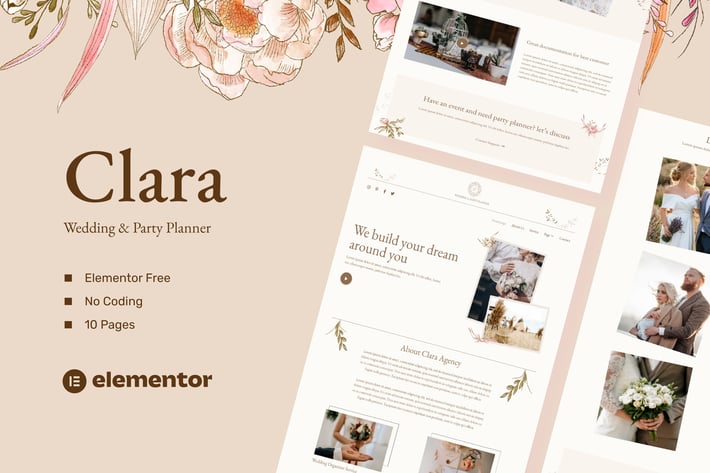
Clara - Wedding & Party Planner Template Kit
Author
antstheme
Published
Sep 02, 2024
Item Code
a6e4f364-fad0-4d27-b53e-29f3a587008b
How to Download
- 1 Copy the Item Code above
- 2 Go to fuckdcma.com
- 3 Paste the code in the text box and click "Generate Download Link"
About This Item
Clara – Wedding & Party Planner Template Kits is an Elementor Template Kit for quickly and easily creating websites for your business using the Elementor Page Builder plugin for WordPress. This is not a WordPress theme. Template Kits contain page content for Elementor page builder. This kit has been optimized for use with the free Hello Elementor theme but may be used with most themes that support Elementor.
# Features
- True no-code customization with drag and drop visual builder
- Customize fonts and colors in one place or fine-tune on individual elements
- Modern, professional design
- Fast-loading
- Works with most Elementor themes.
Homepage
About Us
Service
Portfolio
Our Team
FAQ
Blog News
Blog Details
Contact
404 Error
Addons installed with kit
Element Pack Lite – Addons for Elementor
Elementor
ElementsKit Lite
MetForm
System Requirements to Install Elementor Kit
Memory Limit Hosting Server Should Be 512 Mb
MySQL version 5.6 or greater OR MariaDB version 10.0 or greater
PHP 7 or Greater with PHPZip Extension enabled
Wordpres 6 or Greater
Modern browser such as Chrome or Firefox
* For More Info Kindly Visit this Guide:
How to Install
Template Kits use the Envato Elements plugin to install to WordPress (no subscription required).
Detailed Guide:
How to Import Metforms
1. Import the metform block templates
2. Import the page template where the form appears and right-click to enable the Navigator
3. Locate and select the Metform widget and click Edit Form. Choose New, then Edit Form. The builder will appear
4. Click ‘Add Template’ grey folder icon.
5. Click ‘My Templates’ tab.
6. Choose your imported metform template, then click ‘Insert’ (click No for page settings).
7. Once the template is loaded, make any desired customizations and click ‘Update & Close’ The form will appear in the template
8. Click Update
Setup Global Header and Footer in ElementsKit
1. Import the header and footer template
2. Go to ElementsKit > Header Footer and click Add New (if prompted with a wizard, you may click Next through it without taking any action)
3. Title the header, leave Entire Site selected and toggle Activation to On
4. Click the gray Edit Content button to load the builder
5. Click the gray folder icon and select the header template to import, select your menu in the nav element and click Update.
6. Repeat for Footer
This Template Kit uses demo images from Envato Elements. You will need to license these images from Envato Elements to use them on your website, or you can substitute them with your own.
# Features
- True no-code customization with drag and drop visual builder
- Customize fonts and colors in one place or fine-tune on individual elements
- Modern, professional design
- Fast-loading
- Works with most Elementor themes.
Homepage
About Us
Service
Portfolio
Our Team
FAQ
Blog News
Blog Details
Contact
404 Error
Addons installed with kit
Element Pack Lite – Addons for Elementor
Elementor
ElementsKit Lite
MetForm
System Requirements to Install Elementor Kit
Memory Limit Hosting Server Should Be 512 Mb
MySQL version 5.6 or greater OR MariaDB version 10.0 or greater
PHP 7 or Greater with PHPZip Extension enabled
Wordpres 6 or Greater
Modern browser such as Chrome or Firefox
* For More Info Kindly Visit this Guide:
How to Install
Template Kits use the Envato Elements plugin to install to WordPress (no subscription required).
Detailed Guide:
How to Import Metforms
1. Import the metform block templates
2. Import the page template where the form appears and right-click to enable the Navigator
3. Locate and select the Metform widget and click Edit Form. Choose New, then Edit Form. The builder will appear
4. Click ‘Add Template’ grey folder icon.
5. Click ‘My Templates’ tab.
6. Choose your imported metform template, then click ‘Insert’ (click No for page settings).
7. Once the template is loaded, make any desired customizations and click ‘Update & Close’ The form will appear in the template
8. Click Update
Setup Global Header and Footer in ElementsKit
1. Import the header and footer template
2. Go to ElementsKit > Header Footer and click Add New (if prompted with a wizard, you may click Next through it without taking any action)
3. Title the header, leave Entire Site selected and toggle Activation to On
4. Click the gray Edit Content button to load the builder
5. Click the gray folder icon and select the header template to import, select your menu in the nav element and click Update.
6. Repeat for Footer
This Template Kit uses demo images from Envato Elements. You will need to license these images from Envato Elements to use them on your website, or you can substitute them with your own.
More from antstheme
View all →
Northman - Law Firm Elementor Template Kit
by antstheme
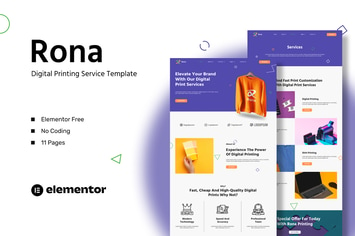
Rona - Digital Printing Service Template Kit
by antstheme
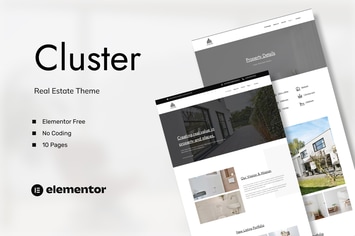
Cluster - Real Estate Elementor Template Kit
by antstheme
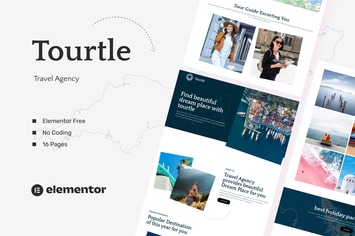
Tourtle - Travel Agency Template Kits
by antstheme
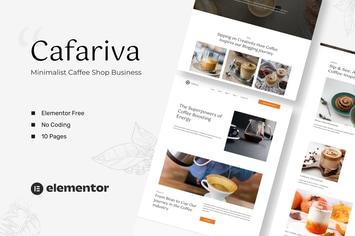
Cafariva - Minimalist Cafe &Coffee Elementor Template Kit
by antstheme
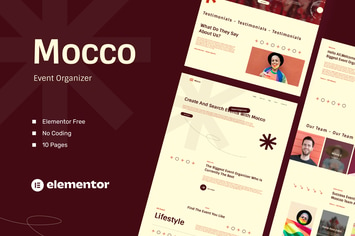
Moocoo - Event Organizer Elementor Template Kit
by antstheme
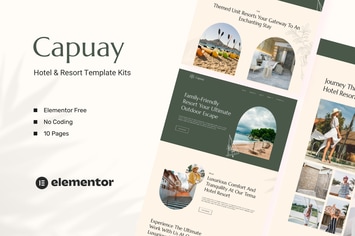
Capuay - Hotel & Resort Elementor Template Kit
by antstheme

Gaming Presentation Keynote Template
by antstheme
You May Also Like

Mahogany
by ThemeREX

Testimonials Showcase
by cmoreira
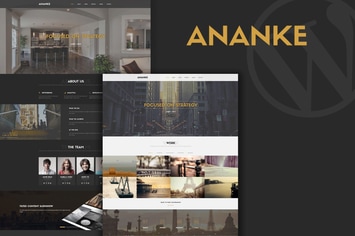
Ananke - One Page Parallax WordPress Theme
by OceanThemes

Credit Card Experience
by axiomthemes

Femme - Online Magazine & Fashion Blog WP Theme
by AncoraThemes

Gatsby - WordPress + eCommerce Theme
by Monkeysan
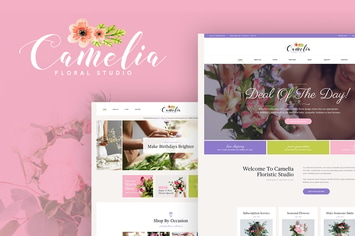
Camelia - A Floral Studio WordPress Theme
by axiomthemes
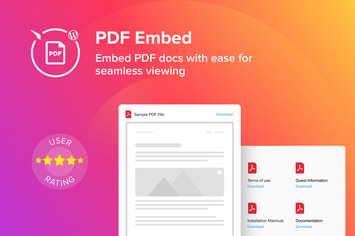
WordPress PDF Embed - Viewer Plugin
by Elfsight