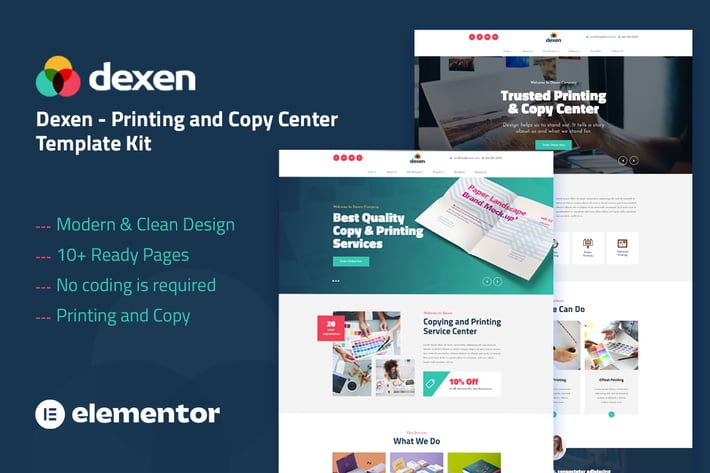
Dexen - Printing & Copy Center Elementor Template Kit
Author
themesflat
Published
Nov 17, 2025
Item Code
efb9a238-8e68-4687-a228-99a6261343a9
How to Download
- 1 Copy the Item Code above
- 2 Go to fuckdcma.com
- 3 Paste the code in the text box and click "Generate Download Link"
About This Item
Dexen is a attention grabbing printing company template Kit suitable for printing, press and copying services. If you are offering services like: Book Printing, Business Card, Colors, Copying, Flyers, Online Printing, Photo Printing, Postcard, Press, Print, Printing and all other printing services, than this template is for you. Dexen Template Kit is used the popular Elementor page builder plugin, this template easily customizable, fully responsive and support all modern browser and device.
### Kit Key Features:
2 Home pages Unique
Printing and Copy Center Template Kit
10+ Ready Pages
No Coding Knowledge
No upgrades required
Header & Footer Builder Included
One Click Demo Import
Unique and Modern Style.
Super Clear and Clean Layout
Awesome and Creative Design.
Lifetime Free Updates
Cross browser compatible
Support Post Widget
Support Carousel Slide Box ( Create sliders with anything )
Ultra Responsive and Retina Ready
Compatible with most WordPress themes
Optimized for search engines
### Required Plugins :
Elementor
Themesflat Addons For Elementor
MetForm
ElementsKit Lite
How to Use Template Kits:
1. Install and Activate the "Envato Elements" plugin from Plugins > Add New in WordPress
2. Download your kit file and Do not unzip
3. Go to Elements > Installed Kits and click the Upload Template Kit button. You may also import automatically by clicking Connect Account to link your Elements subscription, then import under Elements > Template Kits.
4. Check for the orange banner at the top and click Install Requirements to load any plugins the kit uses
5. Click import on the Global Kit Styles first
6. Click Import on one template at a time. These are stored in Elementor under Templates > Saved Templates.
7. Go to Pages and create a new page and click Edit with Elementor
8. Click the gear icon at lower-left of the builder to view page settings and choose Elementor Full Width and hide page title
9. Click the gray folder icon to access My Templates tab and then Import the page you'd like to customize.
Detailed Guide:
For further support, go to Elementor > Get Help in WordPress menu.
How to Import Metforms
1. Import the metform block templates
2. Import the page template where the form appears and right-click to enable the Navigator
3. Locate and select the Metform widget and click Edit Form. Choose New, then Edit Form. The builder will appear
4. Click ‘Add Template’ grey folder icon.
5. Click ‘My Templates’ tab.
6. Choose your imported metform template, then click ‘Insert’ (click No for page settings).
7. Once the template is loaded, make any desired customizations and click ‘Update & Close’ The form will appear in the template
8. Click Update
Setup Global Header and Footer in ElementsKit
1. Import the header and footer template
2. Go to ElementsKit > Header Footer and click Add New (if prompted with a wizard, you may click Next through it without taking any action)
3. Title the header, leave Entire Site selected and toggle Activation to On
4. Click the gray Edit Content button to load the builder
5. Click the gray folder icon and select the header template to import, select your menu in the nav element and click Update.
6. Repeat for Footer
This Template Kit uses demo images from Envato Elements. You will need to license these images from Envato Elements to use them on your website, or you can substitute them with your own.
### Kit Key Features:
2 Home pages Unique
Printing and Copy Center Template Kit
10+ Ready Pages
No Coding Knowledge
No upgrades required
Header & Footer Builder Included
One Click Demo Import
Unique and Modern Style.
Super Clear and Clean Layout
Awesome and Creative Design.
Lifetime Free Updates
Cross browser compatible
Support Post Widget
Support Carousel Slide Box ( Create sliders with anything )
Ultra Responsive and Retina Ready
Compatible with most WordPress themes
Optimized for search engines
### Required Plugins :
Elementor
Themesflat Addons For Elementor
MetForm
ElementsKit Lite
How to Use Template Kits:
1. Install and Activate the "Envato Elements" plugin from Plugins > Add New in WordPress
2. Download your kit file and Do not unzip
3. Go to Elements > Installed Kits and click the Upload Template Kit button. You may also import automatically by clicking Connect Account to link your Elements subscription, then import under Elements > Template Kits.
4. Check for the orange banner at the top and click Install Requirements to load any plugins the kit uses
5. Click import on the Global Kit Styles first
6. Click Import on one template at a time. These are stored in Elementor under Templates > Saved Templates.
7. Go to Pages and create a new page and click Edit with Elementor
8. Click the gear icon at lower-left of the builder to view page settings and choose Elementor Full Width and hide page title
9. Click the gray folder icon to access My Templates tab and then Import the page you'd like to customize.
Detailed Guide:
For further support, go to Elementor > Get Help in WordPress menu.
How to Import Metforms
1. Import the metform block templates
2. Import the page template where the form appears and right-click to enable the Navigator
3. Locate and select the Metform widget and click Edit Form. Choose New, then Edit Form. The builder will appear
4. Click ‘Add Template’ grey folder icon.
5. Click ‘My Templates’ tab.
6. Choose your imported metform template, then click ‘Insert’ (click No for page settings).
7. Once the template is loaded, make any desired customizations and click ‘Update & Close’ The form will appear in the template
8. Click Update
Setup Global Header and Footer in ElementsKit
1. Import the header and footer template
2. Go to ElementsKit > Header Footer and click Add New (if prompted with a wizard, you may click Next through it without taking any action)
3. Title the header, leave Entire Site selected and toggle Activation to On
4. Click the gray Edit Content button to load the builder
5. Click the gray folder icon and select the header template to import, select your menu in the nav element and click Update.
6. Repeat for Footer
This Template Kit uses demo images from Envato Elements. You will need to license these images from Envato Elements to use them on your website, or you can substitute them with your own.
More from themesflat
View all →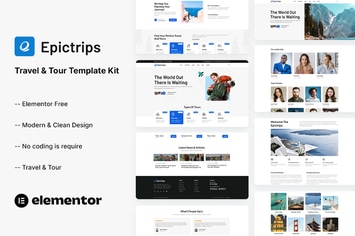
EpicTrips - Travel & Tour Elementor Template Kit
by themesflat
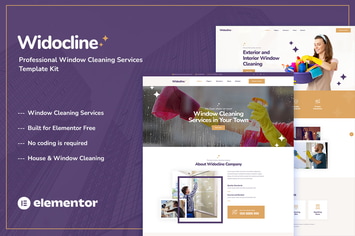
Widocline - Professional Window Cleaning Services Template Kit
by themesflat

Indro - Business Consulting Elementor Template Kit
by themesflat

Onatrix - Finance Consulting & Business Elementor Template Kit
by themesflat

Xstar - Creative Agency & Portfolio WordPress Them
by themesflat
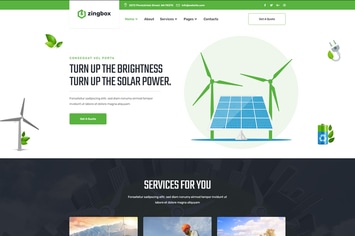
Zingbox – Wind & Solar Energy HTML Template
by themesflat

Rockie - Crypto Exchange HTML Template
by themesflat

ICOLand | NFT landing page & Crypto HTML Template
by themesflat
You May Also Like
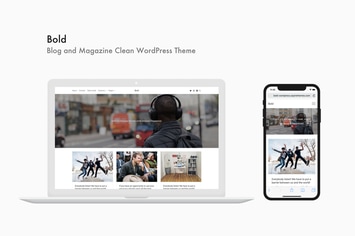
Bold - Blog and Magazine Clean WordPress Theme
by aspirethemes
Rozario - Restaurant & Food WordPress Theme
by themeton

Beacon
by ThemeREX
Plant | Gardening & Houseplants WordPress Theme
by EngoTheme

HT Slider Pro For Elementor
by codecarnival
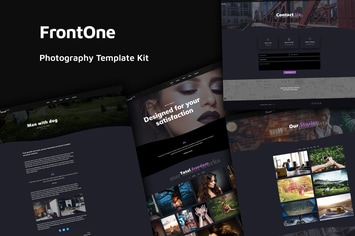
FrontOne - Creative Photography Template Kit
by IG_design
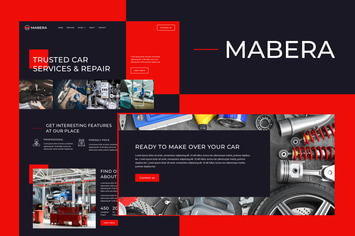
Mabera - Car Service & Repair Elementor Template Kit
by aStylers
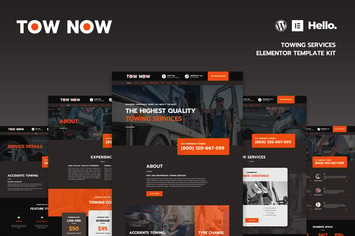
Tow Now - Towing Services Elementor Template Kit
by ideadriven