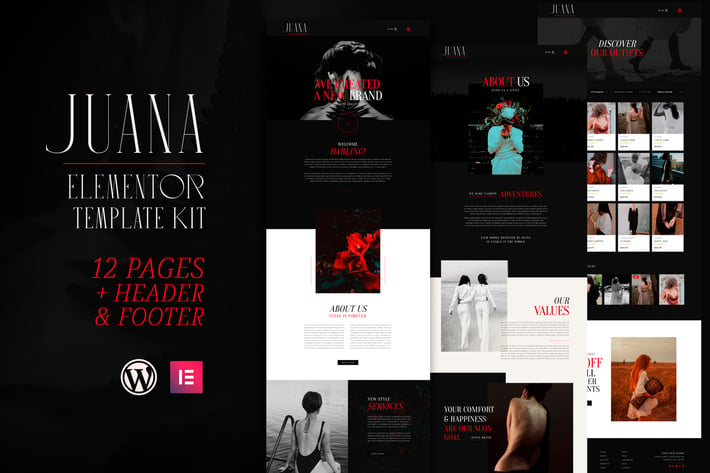
Juana - Fashion Store Elementor Template Kit
Author
touringxx
Published
Oct 07, 2024
Item Code
05b4e8e3-b854-47db-ba1c-732a9a51a005
How to Download
- 1 Copy the Item Code above
- 2 Go to fuckdcma.com
- 3 Paste the code in the text box and click "Generate Download Link"
About This Item
Juana Template Kits is for businesses and entrepreneurs looking for a beautiful layout that supports WooCommerce online shop. Ideal for Boutiques, Fashion Blog, Spas, Beauty Salons, Theaters, Cinema, Jewelry, Women's Magazines, or Whatever You Want! It features beautiful typography and a clean modern layout.
Templates
Home
About Us
Services
History
Team
Blog
Lookbook
Shop
FAQ
Contact
Single Product
Single Blog
Header Section
Footer Section
Features
- 12 Pages + Header & Footer Included
- Clean & Modern Design
- Shop Page Included (WooCommerce Compatible)
- Single Product & Single Blog Included
- MetForm Contact Block Included
- Fully Customizable
- Responsive Design
Required Free Plugins (Installed Automatically)
- Elementor
- Premium Addons for Elementor
- MetForm
- WooCommerce
- Elementor - Header & Footer Builder
- Jeg Elementor Kit
- ShopEngine
How to Install:
1. Install and Activate the "Envato Elements" plugin from Plugins > Add New in WordPress
2. Do not unzip
3. Go to Elements > Installed Kits and click the Upload Template Kit button.
4. Before importing a template, ensure the Install Requirements button is clicked to activate required plugins
5. For best results, do not import more than one template at a time.
6. Go to Pages and create a new page and click Edit with Elementor
7. Click the gear icon at lower-left of the builder to view page settings and choose Elementor Full Width and hide page title
8. Click the gray folder icon to access My Templates tab and then Import the page you'd like to customize
Detailed Guide
For further support, go to Elementor > Get Help in WordPress menu.
Setup Global Header and Footer in Header Footer & Blocks plugin
1. Import the header and footer template
2. Go to Appearance > Header Footer and click Add New button
3. Give it a title and select Header, Display on Entire Site and click Publish
4. Click Edit with Elementor
5. Click the gray folder icon to access My Templates tab and select the header template to import and Update.
6. Repeat for Footer
How to set the Shop, Single Product & Quick View Templates
Make sure you have imported the Shop, Single Product, and Quick View templates so that they are in your Elementor template library. Go to ShopEngine > Builder Templates, click on Add New, in the Type field select Shop, select set default, click Edit with Elementor and insert the corresponding Shop template previously imported.
For Single Product and Quick View templates, repeat the process, selecting the corresponding template in the Type field.
How to Import MetForm Contact Form
Make sure you have imported the MetForm Contact block template. Edit the Contact page, right-click and select Navigator. Locate and select the MetForm widget and click Edit Form. Choose New, then Edit Form. The builder will appear. Click ‘Add Template’ grey folder icon. Click ‘My Templates’ tab. Choose the imported MetForm Contact template, then click ‘Insert’. Once the template is loaded, make any desired customizations and click ‘Update & Close’ The form will appear in the template. Click Update.
Images
Template images are included and licensed through Creative Commons/ CC0 from Pexels. Shop content is not included and requires a few products be setup in WooCommerce first.
Templates
Home
About Us
Services
History
Team
Blog
Lookbook
Shop
FAQ
Contact
Single Product
Single Blog
Header Section
Footer Section
Features
- 12 Pages + Header & Footer Included
- Clean & Modern Design
- Shop Page Included (WooCommerce Compatible)
- Single Product & Single Blog Included
- MetForm Contact Block Included
- Fully Customizable
- Responsive Design
Required Free Plugins (Installed Automatically)
- Elementor
- Premium Addons for Elementor
- MetForm
- WooCommerce
- Elementor - Header & Footer Builder
- Jeg Elementor Kit
- ShopEngine
How to Install:
1. Install and Activate the "Envato Elements" plugin from Plugins > Add New in WordPress
2. Do not unzip
3. Go to Elements > Installed Kits and click the Upload Template Kit button.
4. Before importing a template, ensure the Install Requirements button is clicked to activate required plugins
5. For best results, do not import more than one template at a time.
6. Go to Pages and create a new page and click Edit with Elementor
7. Click the gear icon at lower-left of the builder to view page settings and choose Elementor Full Width and hide page title
8. Click the gray folder icon to access My Templates tab and then Import the page you'd like to customize
Detailed Guide
For further support, go to Elementor > Get Help in WordPress menu.
Setup Global Header and Footer in Header Footer & Blocks plugin
1. Import the header and footer template
2. Go to Appearance > Header Footer and click Add New button
3. Give it a title and select Header, Display on Entire Site and click Publish
4. Click Edit with Elementor
5. Click the gray folder icon to access My Templates tab and select the header template to import and Update.
6. Repeat for Footer
How to set the Shop, Single Product & Quick View Templates
Make sure you have imported the Shop, Single Product, and Quick View templates so that they are in your Elementor template library. Go to ShopEngine > Builder Templates, click on Add New, in the Type field select Shop, select set default, click Edit with Elementor and insert the corresponding Shop template previously imported.
For Single Product and Quick View templates, repeat the process, selecting the corresponding template in the Type field.
How to Import MetForm Contact Form
Make sure you have imported the MetForm Contact block template. Edit the Contact page, right-click and select Navigator. Locate and select the MetForm widget and click Edit Form. Choose New, then Edit Form. The builder will appear. Click ‘Add Template’ grey folder icon. Click ‘My Templates’ tab. Choose the imported MetForm Contact template, then click ‘Insert’. Once the template is loaded, make any desired customizations and click ‘Update & Close’ The form will appear in the template. Click Update.
Images
Template images are included and licensed through Creative Commons/ CC0 from Pexels. Shop content is not included and requires a few products be setup in WooCommerce first.
More from touringxx
View all →Infinity Fashion - WooCommerce Elementor Template Kit
by touringxx

Fashion Spirit - WooCommerce Elementor Template Kit
by touringxx
Valentina - WooCommerce Elementor Template Kit
by touringxx
Fashion Instincts - WooCommerce Elementor Template Kit
by touringxx
Fashion Feel - WooCommerce Elementor Template Kit
by touringxx
Fashion Art - WooCommerce Elementor Template Kit
by touringxx
You May Also Like
Brehoh
by ridianur
Harmonia - Creative Multi-Purpose WordPress Theme
by OceanThemes
Sports Store
by cmsmasters
WooCommerce Referral Scheme WordPress Plugin
by kamleshyadav
Live Preview Switch Bar for WordPress
by AA-Team

Jarvis - Night Club, Concert, Festival WordPress
by AncoraThemes

Potisen - Election & Political WordPress Theme
by gavias

WooCommerce SEO - Local & Business Rich Snippets
by divcoderPlugins