
Ngecor - Construction & Building Company Elementor Template Kit
Author
sigitdwipa
Published
Jul 24, 2021
Item Code
84f56880-e1a1-4080-bf95-2ddfc0869b23
How to Download
- 1 Copy the Item Code above
- 2 Go to fuckdcma.com
- 3 Paste the code in the text box and click "Generate Download Link"
About This Item
Ngecor Construction & Building Company Elementor Template Kit is a collection of layouts for the Elementor page builder WordPress plugin, designed for use with Elementor Free Version for a clean Design, this template kit ready to import &a reusable for Construction & Building Company. It works with most themes and is optimized for use with the free Hello Elementor theme.
You Can Use Ngecor Construction & Building Company Elementor Template Kit With Elementor Free Version.
Pages Templates Included :
Home
About Us
Our Service
Our Projects
Detail Project
Portfolio
Detail Portfolio
Contact Us
Working Gallery
Blog
Single Post
404 Page
Required Plugin ( installed with kit)
Elementor
Elementskit Lite
Elementor - Header, Footer & Blocks
Essential Addons for Elementor
Happy Elementor Addons
MetForm
How to Install:
1. Install and Activate the "Envato Elements" plugin from Plugins > Add New in WordPress
2. Do not unzip
3. Go to Elements > Installed Kits and click the Upload Template Kit button.
4. Before importing a template, ensure the Install Requirements button is clicked to activate required plugins
5. For best results, do not import more than one template at a time.
Detailed Guide
For further support, go to Elementor > Get Help in WordPress menu.
How to Import Metforms
1. Import the metform block templates
2. Import the page template where the form appears and right-click to enable the Navigator
3. Locate and select the Metform widget and click Edit Form. Choose New, then Edit Form. The builder will appear
4. Click ‘Add Template’ grey folder icon.
5. Click ‘My Templates’ tab.
6. Choose your imported metform template, then click ‘Insert’ (click No for page settings).
7. Once the template is loaded, make any desired customizations and click ‘Update & Close’ The form will appear in the template
8. Click Update
Setup Global Header and Footer in Header Footer & Blocks plugin
1. Import the header and footer template
2. Go to Appearance > Header Footer and click Add New button
3. Give it a title and select Header, Display on Entire Site and click Publish
4. Click Edit with Elementor
5. Click the gray folder icon to access My Templates tab and select the header template to import and Update.
6. Repeat for Footer
This Template Kit uses demo images from Envato Elements. You will need to license these images from Envato Elements to use them on your website, or you can substitute them with your own.
You Can Use Ngecor Construction & Building Company Elementor Template Kit With Elementor Free Version.
Pages Templates Included :
Home
About Us
Our Service
Our Projects
Detail Project
Portfolio
Detail Portfolio
Contact Us
Working Gallery
Blog
Single Post
404 Page
Required Plugin ( installed with kit)
Elementor
Elementskit Lite
Elementor - Header, Footer & Blocks
Essential Addons for Elementor
Happy Elementor Addons
MetForm
How to Install:
1. Install and Activate the "Envato Elements" plugin from Plugins > Add New in WordPress
2. Do not unzip
3. Go to Elements > Installed Kits and click the Upload Template Kit button.
4. Before importing a template, ensure the Install Requirements button is clicked to activate required plugins
5. For best results, do not import more than one template at a time.
Detailed Guide
For further support, go to Elementor > Get Help in WordPress menu.
How to Import Metforms
1. Import the metform block templates
2. Import the page template where the form appears and right-click to enable the Navigator
3. Locate and select the Metform widget and click Edit Form. Choose New, then Edit Form. The builder will appear
4. Click ‘Add Template’ grey folder icon.
5. Click ‘My Templates’ tab.
6. Choose your imported metform template, then click ‘Insert’ (click No for page settings).
7. Once the template is loaded, make any desired customizations and click ‘Update & Close’ The form will appear in the template
8. Click Update
Setup Global Header and Footer in Header Footer & Blocks plugin
1. Import the header and footer template
2. Go to Appearance > Header Footer and click Add New button
3. Give it a title and select Header, Display on Entire Site and click Publish
4. Click Edit with Elementor
5. Click the gray folder icon to access My Templates tab and select the header template to import and Update.
6. Repeat for Footer
This Template Kit uses demo images from Envato Elements. You will need to license these images from Envato Elements to use them on your website, or you can substitute them with your own.
More from sigitdwipa
View all →
Aqub - Modern Branding Logo Font
by sigitdwipa

Matgefo Vintage - Logo Font
by sigitdwipa

Bagnolia - Vintage Font
by sigitdwipa

Eqicb - Branding Logo Font
by sigitdwipa

Retro Rider - Branding Logo Font
by sigitdwipa
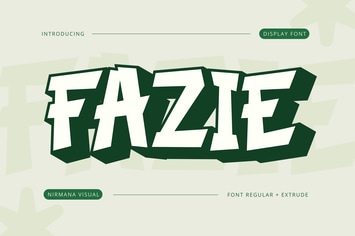
Fazie Retro - Retro Logo Font
by sigitdwipa

Kedas - Car Wash & Detailing Service Elementor Template Kit
by sigitdwipa
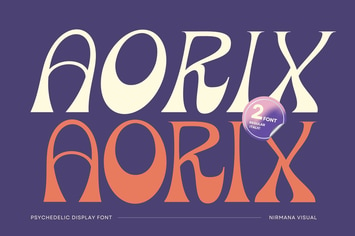
Aorix - Psychedelic Font
by sigitdwipa
You May Also Like

Skype Chat WordPress Plugin For Website
by kamleshyadav

Legal Stone
by ThemeREX

Image / Video Contest Generator
by AA-Team

Hampton |Home Design and House Renovation WP Theme
by axiomthemes

CryptiBIT - Cryptocurrency, ICO WordPress theme
by dedalx

Safir – Jewelry Store WooCommerce Elementor Pro Template Kit
by jegtheme

Jacks Pollock - Vape Elementor Template Kit
by Rometheme
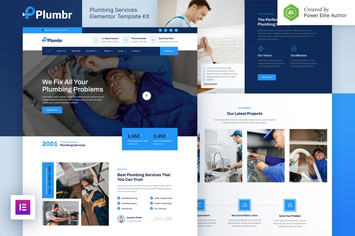
Plumbr – Plumbing Services Elementor Template Kit
by jegtheme