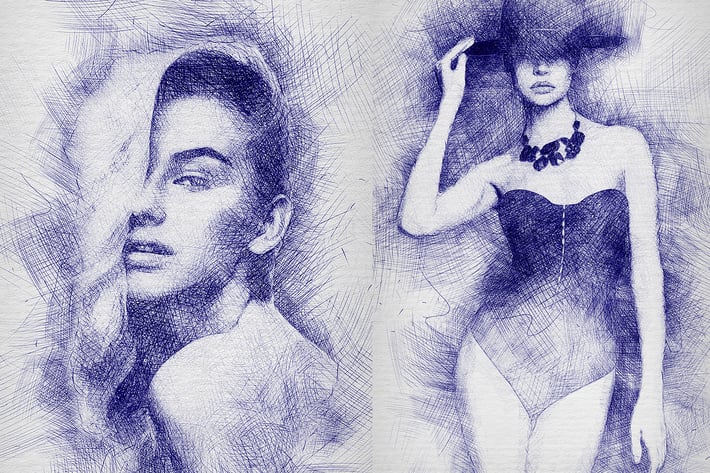
Pen Sketch Photoshop Action
Author
Eugene-design
Published
Jan 11, 2021
Item Code
ef8f8f59-fc9b-47be-92bd-0abc155d0d26
How to Download
- 1 Copy the Item Code above
- 2 Go to fuckdcma.com
- 3 Paste the code in the text box and click "Generate Download Link"
About This Item
Pen Sketch Action turns your photos into realistic Pen Drawn Sketch. Save hours of work with Pen Sketch action. After action finish the work you get a well-organized and structured file with the many layers, folders and settings to improve the final result. Action perfectly work on Mac and PC.
Link on the detailed video tutorial for this action included in Help file.txt
This action has been created and optimized for use on Photoshop CS3, CS4, CS5, CS6, CC, CC 2015, CC2015.5, CC2017+ and ONLY FOR THE ENGLISH VERSION OF PHOTOSHOP. Need to change the language of your version?! How to change language in photoshop watch on youtube. The link under videotutorial.
How to configure Photoshop to work with actions.
1. Make sure you are using the English version of Photoshop.
Each action has been created and optimized to work only with the English version of Photoshop, so please make sure that you are using this version. If not, don’t worry: you can change the language of your version of Photoshop to English (and switch back again)
By the way, my best selling Double Exposure Action has recently been updated, and you can now use it with the English, German, French, Italian, Spanish, Dutch, Danish and Czech versions of Photoshop.
2. Use the RGB Mode and 8 Bits color.
To check these settings, go to Image->Mode and check the “RGB color” and “8 Bits/Channel”.
3. Make sure that the option “Add ‘copy’ to Copied Layers and Groups” is turned on.
This option applies only to CS5 and later versions of Photoshop. On the “LAYERS” panel, click on the menu icon, go to “Panel Options…”, and check that the “Add ‘copy’ to Copied Layers and Groups” is turned on.
4. Use a photo with 72dpi or higher.
If you are using a photo with less than 72dpi, the action will not function correctly. To fix this, go to Image->Image Size and increase the resolution value.
5. Set the Opacity of brush to 100%.
Set the Opacity of the brush to 100%. Select the “Brush Tool” and move the opacity slider to 100%.
How to combine my actions?
1. Open your photo
2. Play the first action
3. Save the result as an image
4. Open the previously saved image
5. Play the second action
Link on the detailed video tutorial for this action included in Help file.txt
This action has been created and optimized for use on Photoshop CS3, CS4, CS5, CS6, CC, CC 2015, CC2015.5, CC2017+ and ONLY FOR THE ENGLISH VERSION OF PHOTOSHOP. Need to change the language of your version?! How to change language in photoshop watch on youtube. The link under videotutorial.
How to configure Photoshop to work with actions.
1. Make sure you are using the English version of Photoshop.
Each action has been created and optimized to work only with the English version of Photoshop, so please make sure that you are using this version. If not, don’t worry: you can change the language of your version of Photoshop to English (and switch back again)
By the way, my best selling Double Exposure Action has recently been updated, and you can now use it with the English, German, French, Italian, Spanish, Dutch, Danish and Czech versions of Photoshop.
2. Use the RGB Mode and 8 Bits color.
To check these settings, go to Image->Mode and check the “RGB color” and “8 Bits/Channel”.
3. Make sure that the option “Add ‘copy’ to Copied Layers and Groups” is turned on.
This option applies only to CS5 and later versions of Photoshop. On the “LAYERS” panel, click on the menu icon, go to “Panel Options…”, and check that the “Add ‘copy’ to Copied Layers and Groups” is turned on.
4. Use a photo with 72dpi or higher.
If you are using a photo with less than 72dpi, the action will not function correctly. To fix this, go to Image->Image Size and increase the resolution value.
5. Set the Opacity of brush to 100%.
Set the Opacity of the brush to 100%. Select the “Brush Tool” and move the opacity slider to 100%.
How to combine my actions?
1. Open your photo
2. Play the first action
3. Save the result as an image
4. Open the previously saved image
5. Play the second action
More from Eugene-design
View all →
Polo Shirt Mock-Up
by Eugene-design
Landscape Brochure Mock-Up
by Eugene-design
Poster Frame Mock-Up
by Eugene-design
Photorealistic Phone 6 Mock-Up
by Eugene-design
Epic Photoshop Action
by Eugene-design

Code Art Photoshop Action
by Eugene-design
Double Exposure Photoshop Action
by Eugene-design
Digital Sketch Photoshop Action
by Eugene-design
You May Also Like
Lens - 20 Vibrant Effects
by sparklestock
Prism Photoshop Action
by sevenstyles
Illustrator - Vector Art Photoshop Action
by Ayashi
Glow in the dark Photoshop Actions
by micromove
Fracture Photoshop Action
by sevenstyles
Golden Hour Photoshop Actions
by Contrastly
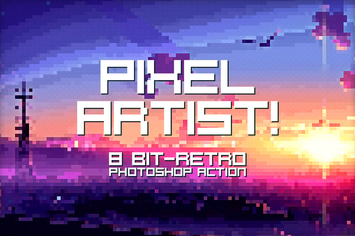
Pixel Artist - Photoshop Action
by BlackNull
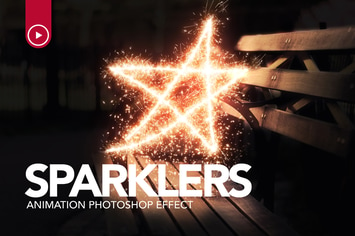
Sparklers Animation Photoshop Action
by sreda