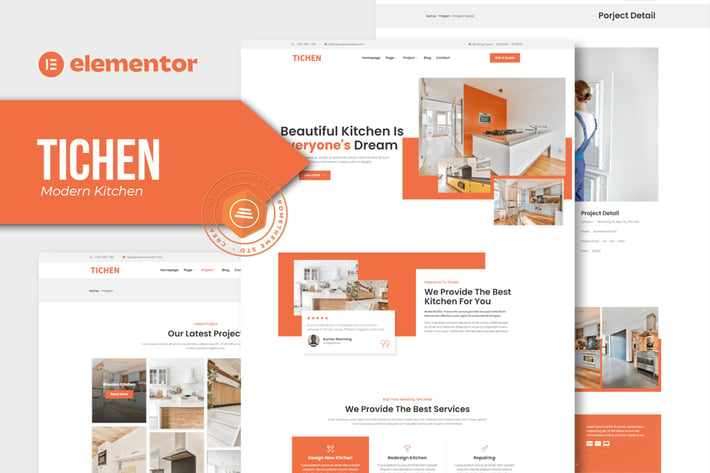
Tichen - Modern Kitchen Elementor Template Kit
Author
Rometheme
Published
Aug 22, 2024
Item Code
3f785242-fc5d-48a6-8273-a561adc33b5a
How to Download
- 1 Copy the Item Code above
- 2 Go to fuckdcma.com
- 3 Paste the code in the text box and click "Generate Download Link"
About This Item
Tichen - Modern Kitchen Elementor Template Kit. Tichen has 11+ pre-built templates with fully responsive, clean design and customizable theme. Tichen is built and suitable for modern furniture products in kitchen room, living room, bedroom or office.
Elementor Kit contains page content for Elementor page builder. This kit has been optimized for use with the free Hello Elementor theme but may be used with most themes that support Elementor.
Features:
Cross-Browser Compatibility: FireFox, Safari, Chrome, IE9, IE10, IE11
Using Free Plugins (Elementor Pro is not required)
Fully Responsive Layout, Retina Ready, Ultra-High Resolution Graphics
True no-code customization with drag and drop visual builder
Customize fonts and colors in one place or fine-tune on individual elements
11+ pre-built templates ready to use
A clean, modern designs which can be adapted and used for any website design and layout
Templates In Zip :
Home
About
Services
Gallery
Project
Project Detail
FAQ
Contact
Blog
Header
Footer
Required Plugins :
Elementor
ElementsKit Lite
Metform
How to Use Template Kits:
Install and Activate the “Envato Elements” plugin from Plugins > Add New in WordPress
Download your kit file and Do not unzip
Go to Elements > Installed Kits and click the Upload Template Kit button. You may also import automatically by clicking Connect Account to link your Elements subscription, then import under Elements > Template Kits.
Check for the orange banner at the top and click Install Requirements to load any plugins the kit uses
Click import on the Global Kit Styles first
Click Import on one template at a time. These are stored in Elementor under Templates > Saved Templates.
Go to Pages and create a new page and click Edit with Elementor
Click the gear icon at lower-left of the builder to view page settings and choose Elementor Full Width and hide page title
Click the gray folder icon to access My Templates tab and then Import the page you’d like to customize.
If you have Elementor Pro, headers and footers may be customized under Theme Builder.
Detailed Guide:
For further support, go to Elementor > Get Help in WordPress menu.
How to Import Metforms
1. Import the metform block templates
2. Import the page template where the form appears and right-click to enable the Navigator
3. Locate and select the Metform widget and click Edit Form. Choose New, then Edit Form. The builder will appear
4. Click ‘Add Template’ grey folder icon.
5. Click ‘My Templates’ tab.
6. Choose your imported metform template, then click ‘Insert’ (click No for page settings).
7. Once the template is loaded, make any desired customizations and click ‘Update & Close’ The form will appear in the template
8. Click Update
Setup Global Header and Footer in ElementsKit
1. Import the header and footer template
2. Go to ElementsKit > Header Footer and click Add New (if prompted with a wizard, you may click Next through it without taking any action)
3. Title the header, leave Entire Site selected and toggle Activation to On
4. Click the gray Edit Content button to load the builder
5. Click the gray folder icon and select the header template to import, select your menu in the nav element and click Update.
6. Repeat for Footer
This Template Kit uses demo images from Envato Elements. You will need to license these images from Envato Elements to use them on your website, or you can substitute them with your own.
Elementor Kit contains page content for Elementor page builder. This kit has been optimized for use with the free Hello Elementor theme but may be used with most themes that support Elementor.
Features:
Cross-Browser Compatibility: FireFox, Safari, Chrome, IE9, IE10, IE11
Using Free Plugins (Elementor Pro is not required)
Fully Responsive Layout, Retina Ready, Ultra-High Resolution Graphics
True no-code customization with drag and drop visual builder
Customize fonts and colors in one place or fine-tune on individual elements
11+ pre-built templates ready to use
A clean, modern designs which can be adapted and used for any website design and layout
Templates In Zip :
Home
About
Services
Gallery
Project
Project Detail
FAQ
Contact
Blog
Header
Footer
Required Plugins :
Elementor
ElementsKit Lite
Metform
How to Use Template Kits:
Install and Activate the “Envato Elements” plugin from Plugins > Add New in WordPress
Download your kit file and Do not unzip
Go to Elements > Installed Kits and click the Upload Template Kit button. You may also import automatically by clicking Connect Account to link your Elements subscription, then import under Elements > Template Kits.
Check for the orange banner at the top and click Install Requirements to load any plugins the kit uses
Click import on the Global Kit Styles first
Click Import on one template at a time. These are stored in Elementor under Templates > Saved Templates.
Go to Pages and create a new page and click Edit with Elementor
Click the gear icon at lower-left of the builder to view page settings and choose Elementor Full Width and hide page title
Click the gray folder icon to access My Templates tab and then Import the page you’d like to customize.
If you have Elementor Pro, headers and footers may be customized under Theme Builder.
Detailed Guide:
For further support, go to Elementor > Get Help in WordPress menu.
How to Import Metforms
1. Import the metform block templates
2. Import the page template where the form appears and right-click to enable the Navigator
3. Locate and select the Metform widget and click Edit Form. Choose New, then Edit Form. The builder will appear
4. Click ‘Add Template’ grey folder icon.
5. Click ‘My Templates’ tab.
6. Choose your imported metform template, then click ‘Insert’ (click No for page settings).
7. Once the template is loaded, make any desired customizations and click ‘Update & Close’ The form will appear in the template
8. Click Update
Setup Global Header and Footer in ElementsKit
1. Import the header and footer template
2. Go to ElementsKit > Header Footer and click Add New (if prompted with a wizard, you may click Next through it without taking any action)
3. Title the header, leave Entire Site selected and toggle Activation to On
4. Click the gray Edit Content button to load the builder
5. Click the gray folder icon and select the header template to import, select your menu in the nav element and click Update.
6. Repeat for Footer
This Template Kit uses demo images from Envato Elements. You will need to license these images from Envato Elements to use them on your website, or you can substitute them with your own.
More from Rometheme
View all →
Point - Creative Digital Agency HTML Template
by Rometheme
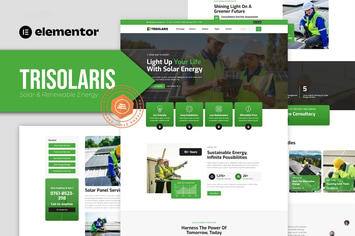
Trisolaris - Solar & Renewable Energy Elementor Template Kit
by Rometheme

Prudent - Notary Public & Legal Services Elementor Template Kit
by Rometheme
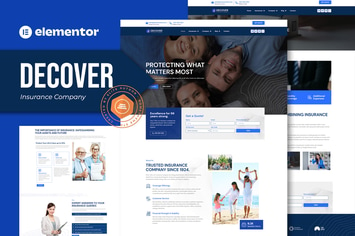
Decover - Insurance Company Elementor Pro Template Kit
by Rometheme
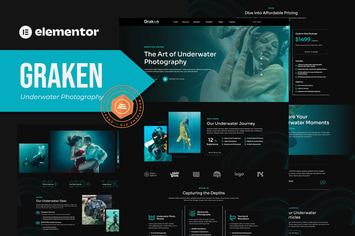
Graken - Underwater Photography Elementor Template Kit
by Rometheme

Pillar - Lawyer & Attorney HTML Template
by Rometheme
Gacor - Construction Company Elementor Template Kit
by Rometheme

Goodlend - Venture Capital & Investment Elementor Template Kit
by Rometheme
You May Also Like

Optima - Multipurpose WordPress Theme
by LA-Studio
Mooboo - Fashion Theme for WooCommerce WordPress
by roadthemes

Attornix - Lawyer WordPress Theme
by cmsmasters
Musik - WordPress Admin Theme
by Flatfull
TourPress - Travel Booking WordPress Theme
by InspiryThemes

Pepper - Elegent Multi Purpose WordPress Theme
by G5Theme
Porus - Bakery Store WordPress Theme
by G5Theme

Zortex - Broadband & Internet Services Elementor Pro Template Kit
by TemplateUp-Pro