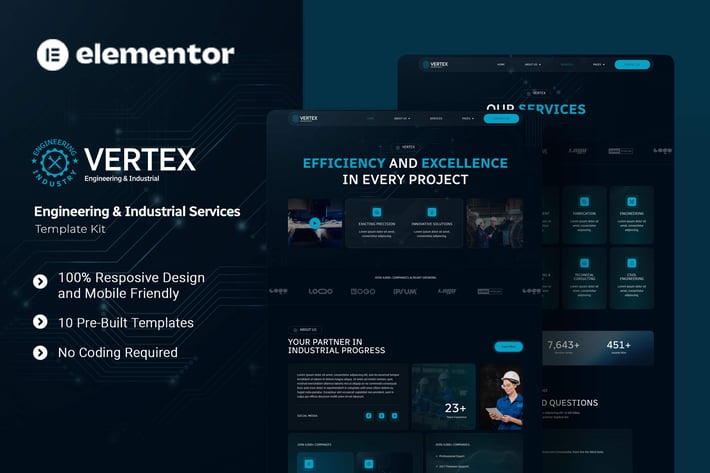
Vertex - Engineering & Industrial Services Elementor Template Kit
Author
Kitpro
Published
Jun 29, 2025
Item Code
c092a9a9-a9f3-4028-943d-836d209f7c6e
How to Download
- 1 Copy the Item Code above
- 2 Go to fuckdcma.com
- 3 Paste the code in the text box and click "Generate Download Link"
About This Item
Vertex is a modern Elementor Template Kit created for businesses looking to build a strong online presence in the engineering and industrial services industry. Ideal for Engineering Firms, Industrial Service Providers, Manufacturing Consultants, and any engineering-related business. Vertex uses free elements, so don't worry about trying this one. Vertex provides various pages including Home, About Us, Team, Services, Pricing, FAQs, Blog, Blog Detail, 404, Contact Us.
Templates
01. Home
02. About Us
03. Team
04. Services
05. Pricing
06. FAQs
07. Blog
08. Blog Detail
09. 404
10. Contact Us
Font Used
Radio Canada
Roboto
Plugins Installed with kit :
Elementor
ElementsKit Lite
Jeg Elementor Kit
Metform
Elementor Header & Footer Builder
How to Use Template Kits:
This is not a WordPress Theme. Template kits contain the design data for Elementor only and are installed using the envato Elements plugin for WordPress or directly through Elementor.
Elementor Template Kits use the Envato Elements plugin to install.
Detailed Guide:
For further support, go to Elementor > Get Help in WordPress menu.
How to Import Metforms
If you have Elementor Pro, skip install of Metform and form blocks.
1. Import the metform block templates
2. Import the page template where the form appears and right-click to enable the Navigator
3. Locate and select the Metform widget and click Edit Form. Choose New, then Edit Form. The builder will appear
4. Click ‘Add Template’ grey folder icon.
5. Click ‘My Templates’ tab.
6. Choose your imported metform template, then click ‘Insert’ (click No for page settings).
7. Once the template is loaded, make any desired customizations and click ‘Update & Close’ The form will appear in the template
8. Click Update
How to setup header in Jeg Elementor Kit plugin
If you have Elementor Pro, headers and footers may be customized under Theme Builder.
1. Go to Jeg Elementor Kit menu item > Header Template
2. Click Add New Header
3. Add condition > All Site and click Create
4. Click the pencil icon to Edit and elementor will appear
5. Click gray folder icon to access My Templates tab
6. Insert the header template.
7. Customize and Save.
Images
This Template Kit uses demo images from Envato Elements. You will need to license these images from Envato Elements to use them on your website, or you can substitute them with your own.
Templates
01. Home
02. About Us
03. Team
04. Services
05. Pricing
06. FAQs
07. Blog
08. Blog Detail
09. 404
10. Contact Us
Font Used
Radio Canada
Roboto
Plugins Installed with kit :
Elementor
ElementsKit Lite
Jeg Elementor Kit
Metform
Elementor Header & Footer Builder
How to Use Template Kits:
This is not a WordPress Theme. Template kits contain the design data for Elementor only and are installed using the envato Elements plugin for WordPress or directly through Elementor.
Elementor Template Kits use the Envato Elements plugin to install.
Detailed Guide:
For further support, go to Elementor > Get Help in WordPress menu.
How to Import Metforms
If you have Elementor Pro, skip install of Metform and form blocks.
1. Import the metform block templates
2. Import the page template where the form appears and right-click to enable the Navigator
3. Locate and select the Metform widget and click Edit Form. Choose New, then Edit Form. The builder will appear
4. Click ‘Add Template’ grey folder icon.
5. Click ‘My Templates’ tab.
6. Choose your imported metform template, then click ‘Insert’ (click No for page settings).
7. Once the template is loaded, make any desired customizations and click ‘Update & Close’ The form will appear in the template
8. Click Update
How to setup header in Jeg Elementor Kit plugin
If you have Elementor Pro, headers and footers may be customized under Theme Builder.
1. Go to Jeg Elementor Kit menu item > Header Template
2. Click Add New Header
3. Add condition > All Site and click Create
4. Click the pencil icon to Edit and elementor will appear
5. Click gray folder icon to access My Templates tab
6. Insert the header template.
7. Customize and Save.
Images
This Template Kit uses demo images from Envato Elements. You will need to license these images from Envato Elements to use them on your website, or you can substitute them with your own.
More from Kitpro
View all →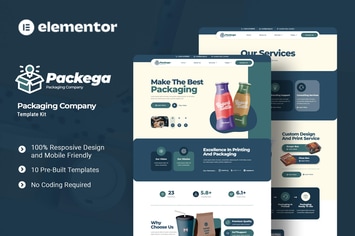
Packega - Packaging Company Elementor Template Kit
by Kitpro

Soccia - Social Media Agency Elementor Template Kit
by Kitpro

Cinepix - Film & Video Production Elementor Template Kit
by Kitpro
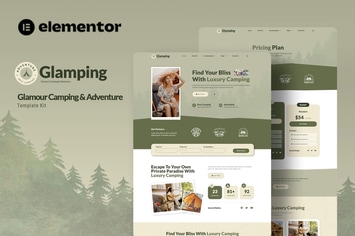
Glamping - Glamour Camping & Adventure Elementor Template Kit
by Kitpro

Investure - Venture Capital & Investment Elementor Template Kit
by Kitpro
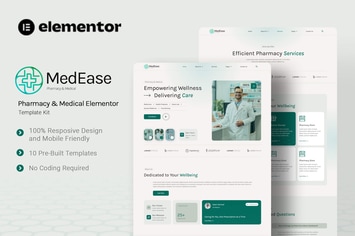
MedEase - Pharmacy & Medical Elementor Template Kit
by Kitpro
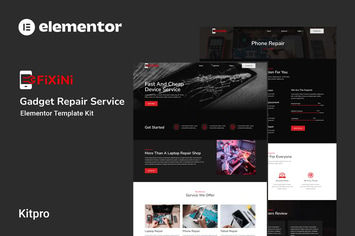
Fixini - Gadget Repair Service Elementor Template Kit
by Kitpro

MindTalk - Psychology & Counseling Elementor Template Kit
by Kitpro
You May Also Like
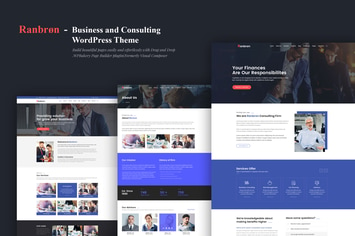
Ranbron - Business and Consulting WordPress Theme
by Templatation

Cars4Rent
by axiomthemes

WordPress Facebook Chat Plugin
by Elfsight

Baxel - Minimalist WordPress Blog Theme
by Burnhambox
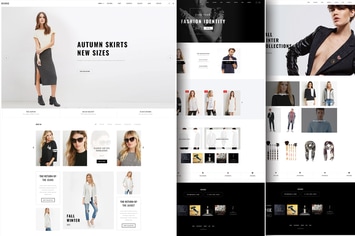
Reverse - WooCommerce Shopping Theme
by disgogo

Health Center - Medical WordPress theme
by disgogo

Social followers bar for WordPress
by merkulove
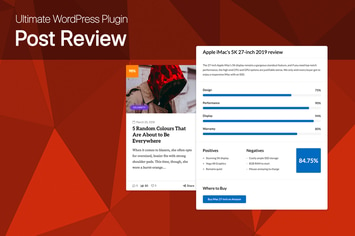
Ultimate Post Review - WordPress Rating/Reviews
by dedalx