
EduByte - IT Online Course & Education Elementor Template Kit
Author
Kitpro
Published
Nov 21, 2025
Item Code
9996b631-d6c9-49ce-ac28-f4177933c8c1
How to Download
- 1 Copy the Item Code above
- 2 Go to fuckdcma.com
- 3 Paste the code in the text box and click "Generate Download Link"
About This Item
EduByte is an Elementor Template Kit designed for businesses looking to build a strong online presence in the IT online courses and education industry. Perfect for Online Learning Platforms, IT Training Providers, Educational Consultants and any technology-focused education business. EduByte uses free elements, so don't worry about trying this one. EduByte provides various pages including Home, About Us, Team, Courses, Single Courses, Pricing, FAQs, Blog, Blog Detail, 404, Contact Us.
Templates
01. Home
02. About Us
03. Team
04. Courses
05. Single Courses
06. Pricing
07. FAQs
08. Blog
09. Blog Detail
10. 404
11. Contact Us
Plugins installed with kit
Elementor
ElementsKit Lite
Jeg Elementor Kit
Metform
Elementor Header & Footer Builder
Font Used
Montserrat
Roboto
How to Use Template Kits:
This is not a WordPress Theme. Template kits contain the design data for Elementor only and are installed using the envato Elements plugin for WordPress or directly through Elementor.
Elementor Template Kits use the Envato Elements plugin to install.
Detailed Guide:
For further support, go to Elementor > Get Help in WordPress menu.
How to Import Metforms
If you have Elementor Pro, skip install of Metform and form blocks.
1. Import the metform block templates
2. Import the page template where the form appears and right-click to enable the Navigator
3. Locate and select the Metform widget and click Edit Form. Choose New, then Edit Form. The builder will appear
4. Click ‘Add Template’ grey folder icon.
5. Click ‘My Templates’ tab.
6. Choose your imported metform template, then click ‘Insert’ (click No for page settings).
7. Once the template is loaded, make any desired customizations and click ‘Update & Close’ The form will appear in the template
8. Click Update
Setup Global Header and Footer in Header Footer & Blocks plugin
If you have Elementor Pro, headers and footers may be customized under Theme Builder.
1. Go to Appearance > Header Footer and click Add New button
3. Give it a title and select Header, Display on Entire Site and click Publish
4. Click Edit with Elementor
5. Click the gray folder icon to access My Templates tab and select the header template to import and Update.
6. Repeat for Footer
Images
This Template Kit uses demo images from Envato Elements. You will need to license these images from Envato Elements to use them on your website, or you can substitute them with your own.
Templates
01. Home
02. About Us
03. Team
04. Courses
05. Single Courses
06. Pricing
07. FAQs
08. Blog
09. Blog Detail
10. 404
11. Contact Us
Plugins installed with kit
Elementor
ElementsKit Lite
Jeg Elementor Kit
Metform
Elementor Header & Footer Builder
Font Used
Montserrat
Roboto
How to Use Template Kits:
This is not a WordPress Theme. Template kits contain the design data for Elementor only and are installed using the envato Elements plugin for WordPress or directly through Elementor.
Elementor Template Kits use the Envato Elements plugin to install.
Detailed Guide:
For further support, go to Elementor > Get Help in WordPress menu.
How to Import Metforms
If you have Elementor Pro, skip install of Metform and form blocks.
1. Import the metform block templates
2. Import the page template where the form appears and right-click to enable the Navigator
3. Locate and select the Metform widget and click Edit Form. Choose New, then Edit Form. The builder will appear
4. Click ‘Add Template’ grey folder icon.
5. Click ‘My Templates’ tab.
6. Choose your imported metform template, then click ‘Insert’ (click No for page settings).
7. Once the template is loaded, make any desired customizations and click ‘Update & Close’ The form will appear in the template
8. Click Update
Setup Global Header and Footer in Header Footer & Blocks plugin
If you have Elementor Pro, headers and footers may be customized under Theme Builder.
1. Go to Appearance > Header Footer and click Add New button
3. Give it a title and select Header, Display on Entire Site and click Publish
4. Click Edit with Elementor
5. Click the gray folder icon to access My Templates tab and select the header template to import and Update.
6. Repeat for Footer
Images
This Template Kit uses demo images from Envato Elements. You will need to license these images from Envato Elements to use them on your website, or you can substitute them with your own.
More from Kitpro
View all →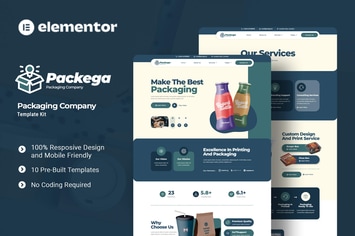
Packega - Packaging Company Elementor Template Kit
by Kitpro

Soccia - Social Media Agency Elementor Template Kit
by Kitpro

Cinepix - Film & Video Production Elementor Template Kit
by Kitpro
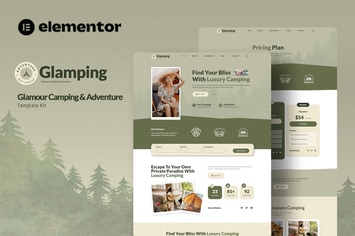
Glamping - Glamour Camping & Adventure Elementor Template Kit
by Kitpro

Investure - Venture Capital & Investment Elementor Template Kit
by Kitpro

MedEase - Pharmacy & Medical Elementor Template Kit
by Kitpro
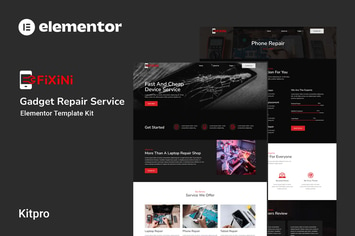
Fixini - Gadget Repair Service Elementor Template Kit
by Kitpro

MindTalk - Psychology & Counseling Elementor Template Kit
by Kitpro
You May Also Like
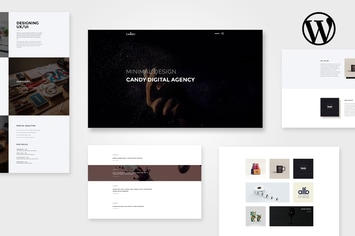
Candy | One & Multi Page WP
by AgniHD

Finance - Business & Financial, Broker, Consulting
by ThemeModern

Wallhaven - Import High-Quality Images into WP
by AA-Team
Custom Made | Jewelry Manufacturer and Store
by axiomthemes
Suki - Meditation Channel Elementor Template Kit
by awakenedtemplates
Bilis - Agency Landing Page Elementor Block Kit
by aStylers
Interi - Interior Design Elementor Template Kit
by pennyblack
Dominion - WP Domain Checker Plugin
by Fluent-Themes