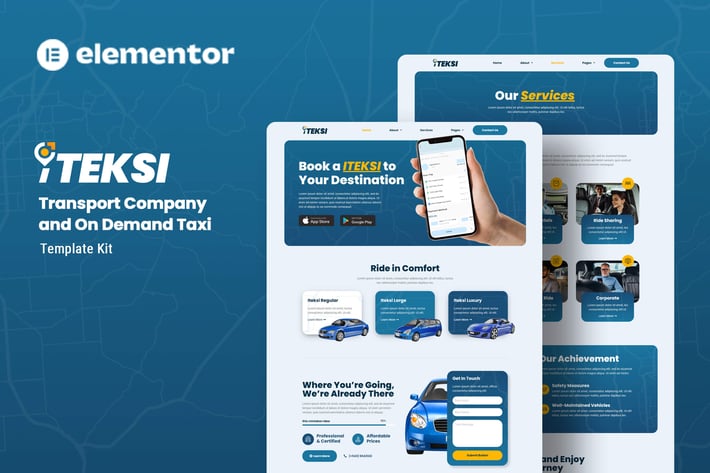
Iteksi - Transport Company & Taxi App Elementor Template Kit
Author
Kitpro
Published
Dec 30, 2024
Item Code
1e611499-ff06-4b9a-8cf0-d24a155572dd
How to Download
- 1 Copy the Item Code above
- 2 Go to fuckdcma.com
- 3 Paste the code in the text box and click "Generate Download Link"
About This Item
Iteksi is an Elementor template kit for transportation companies, on-demand transportation, online taxi services, car rental businesses, and other transport companies. This is not a WordPress theme. Template Kits contain page content for Elementor page builder. This kit has been optimized for use with the free Hello Elementor theme but may be used with most themes that support Elementor.
- Features
- True no-code customization with drag and drop visual builder
- Customize fonts and colors in one place or fine-tune on individual elements
- Modern, professional design
- Fast-loading
- Works with most Elementor themes.
Templates
01. Home
02. About Us
03. Team
04. Services
05. Testimonials
06. FAQs
07. Blog
08. Single Blog
09. 404
10. Contact Us
Plugins installed with kit
ElementsKit Lite
Jeg Elementor Kit
Metform
Header & Footer Builder
Font Used
Poppins
Roboto
How to Use Template Kits:
1. Install and Activate the "Envato Elements" plugin from Plugins > Add New in WordPress. You do NOT need an Envato Elements subscription to use this plugin to install kits.
2. Download your kit file and Do not unzip it! If you have Safari, ensure "open safe files after downloading" is not enabled in preferences.
3. Go to Elements > Installed Kits and click the Upload Template Kit button. You may also import automatically by clicking Connect Account to link your Elements subscription, then import under Elements > Template Kits.
4. Check for the orange banner at the top and click Install Requirements to load any plugins the kit uses
5. Click import on the Global Kit Styles first
6. Click Import on one template at a time. These are stored in Elementor under Templates > Saved Templates.
7. Go to Pages and create a new page and click Edit with Elementor
8. Click the gear icon at lower-left of the builder to view page settings and choose Elementor Full Width and hide page title
9. Click the gray folder icon to access My Templates tab and then Import the page you'd like to customize.
Detailed Guide:
For further support, go to Elementor > Get Help in WordPress menu.
How to Import Metforms
1. Import the metform block templates
2. Import the page template where the form appears and right-click to enable the Navigator
3. Locate and select the Metform widget and click Edit Form. Choose New, then Edit Form. The builder will appear
4. Click ‘Add Template’ grey folder icon.
5. Click ‘My Templates’ tab.
6. Choose your imported metform template, then click ‘Insert’ (click No for page settings).
7. Once the template is loaded, make any desired customizations and click ‘Update & Close’ The form will appear in the template
8. Click Update
How to setup header in Jeg Elementor Kit plugin
If you have Elementor Pro, headers and footers may be customized under Theme Builder.
1. Go to Jeg Elementor Kit menu item > Header Template
2. Click Add New Header
3. Add condition > All Site and click Create
4. Click gray folder icon to access My Templates tab
5. Insert the header template.
6. Customize and Save.
Images
This Template Kit uses demo images from Envato Elements. You will need to license these images from Envato Elements to use them on your website, or you can substitute them with your own.
- Features
- True no-code customization with drag and drop visual builder
- Customize fonts and colors in one place or fine-tune on individual elements
- Modern, professional design
- Fast-loading
- Works with most Elementor themes.
Templates
01. Home
02. About Us
03. Team
04. Services
05. Testimonials
06. FAQs
07. Blog
08. Single Blog
09. 404
10. Contact Us
Plugins installed with kit
ElementsKit Lite
Jeg Elementor Kit
Metform
Header & Footer Builder
Font Used
Poppins
Roboto
How to Use Template Kits:
1. Install and Activate the "Envato Elements" plugin from Plugins > Add New in WordPress. You do NOT need an Envato Elements subscription to use this plugin to install kits.
2. Download your kit file and Do not unzip it! If you have Safari, ensure "open safe files after downloading" is not enabled in preferences.
3. Go to Elements > Installed Kits and click the Upload Template Kit button. You may also import automatically by clicking Connect Account to link your Elements subscription, then import under Elements > Template Kits.
4. Check for the orange banner at the top and click Install Requirements to load any plugins the kit uses
5. Click import on the Global Kit Styles first
6. Click Import on one template at a time. These are stored in Elementor under Templates > Saved Templates.
7. Go to Pages and create a new page and click Edit with Elementor
8. Click the gear icon at lower-left of the builder to view page settings and choose Elementor Full Width and hide page title
9. Click the gray folder icon to access My Templates tab and then Import the page you'd like to customize.
Detailed Guide:
For further support, go to Elementor > Get Help in WordPress menu.
How to Import Metforms
1. Import the metform block templates
2. Import the page template where the form appears and right-click to enable the Navigator
3. Locate and select the Metform widget and click Edit Form. Choose New, then Edit Form. The builder will appear
4. Click ‘Add Template’ grey folder icon.
5. Click ‘My Templates’ tab.
6. Choose your imported metform template, then click ‘Insert’ (click No for page settings).
7. Once the template is loaded, make any desired customizations and click ‘Update & Close’ The form will appear in the template
8. Click Update
How to setup header in Jeg Elementor Kit plugin
If you have Elementor Pro, headers and footers may be customized under Theme Builder.
1. Go to Jeg Elementor Kit menu item > Header Template
2. Click Add New Header
3. Add condition > All Site and click Create
4. Click gray folder icon to access My Templates tab
5. Insert the header template.
6. Customize and Save.
Images
This Template Kit uses demo images from Envato Elements. You will need to license these images from Envato Elements to use them on your website, or you can substitute them with your own.
More from Kitpro
View all →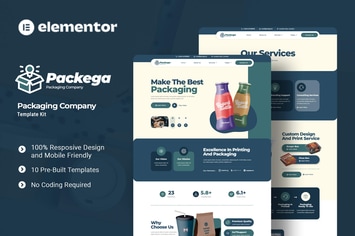
Packega - Packaging Company Elementor Template Kit
by Kitpro

Soccia - Social Media Agency Elementor Template Kit
by Kitpro

Cinepix - Film & Video Production Elementor Template Kit
by Kitpro
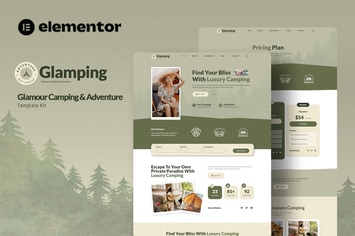
Glamping - Glamour Camping & Adventure Elementor Template Kit
by Kitpro

Investure - Venture Capital & Investment Elementor Template Kit
by Kitpro
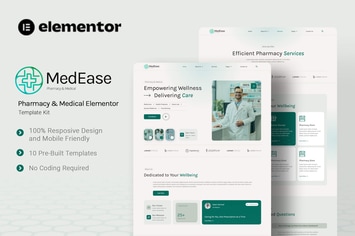
MedEase - Pharmacy & Medical Elementor Template Kit
by Kitpro
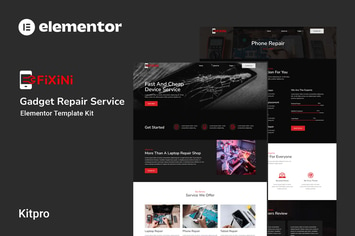
Fixini - Gadget Repair Service Elementor Template Kit
by Kitpro

MindTalk - Psychology & Counseling Elementor Template Kit
by Kitpro
You May Also Like
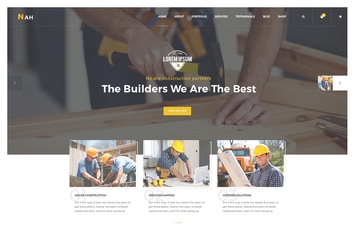
Nah Construction, Building Business WordPress
by themesflat
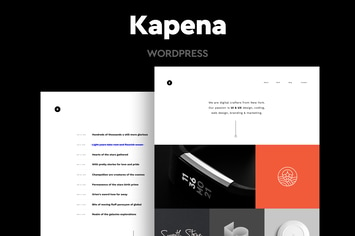
Kapena - Minimal Portfolio WordPress Theme
by CocoBasic
Premium Age Verification / Restriction
by AA-Team
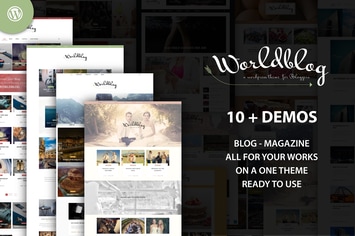
Worldblog - WordPress Blog and Magazine Theme
by ad-theme
NEX-Forms - GetResponse Add-on
by Basix
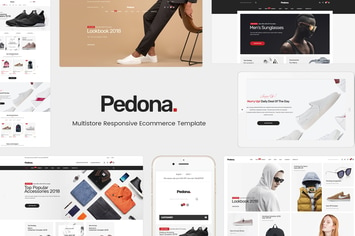
Pedona - Fashion & Sport Theme for WordPress
by Plaza-Themes

Tripster
by axiomthemes

WordPress Logo Showcase Plugin
by Elfsight