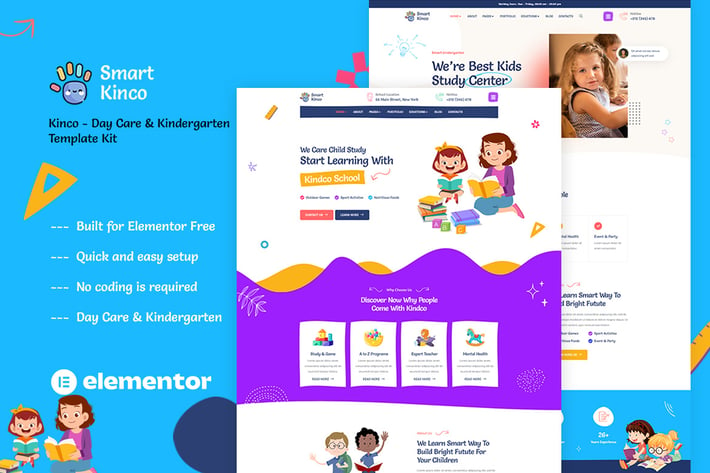
Kinco - Day Care & Kindergarten Elementor Template Kit
Author
surisoft
Published
Dec 30, 2024
Item Code
599ba558-5f3d-4cc2-921f-9e913b95d28c
How to Download
- 1 Copy the Item Code above
- 2 Go to fuckdcma.com
- 3 Paste the code in the text box and click "Generate Download Link"
About This Item
Kinco is a Template Kit created for Kindergarten and Preschool. Build for a website kindergarten, childcare, pre-school, homeschooling, school, learning, playground businesses or any other related website. This template is packed with 10 different pages for your website, has a beautiful and unique design with a 100% responsive layout, retina-ready, and very easy to customize because using Elementor so you don’t need a single line of coding!
Kinco - Day Care & Kindergarten Template Kit is packed with powerful and intuitive features, providing endless possibilities, you can build a full education website in just a few clicks
### Required Plugins :
Elementor
Themesflat Addons For Elementor
MetForm
Sticky Header Effects for Elementor
ElementsKit Lite
### Kit Key Features:
2 Homepage Versions
No Coding Knowledge Required
no upgrades required
Header & Footer Builder Included
One Click Demo Import
Playful style
Graphics included
Cross browser compatible
Post Widget
Carousel Slide Box ( Create sliders with anything )
Ultra Responsive and Retina Ready
Compatible with most WordPress themes
Optimized for search engines
How to Use Template Kits:
1. Install and Activate the "Envato Elements" plugin from Plugins > Add New in WordPress
2. Download your kit file and Do not unzip
3. Go to Elements > Installed Kits and click the Upload Template Kit button. You may also import automatically by clicking Connect Account to link your Elements subscription, then import under Elements > Template Kits.
4. Check for the orange banner at the top and click Install Requirements to load any plugins the kit uses
5. Click import on the Global Kit Styles first
6. Click Import on one template at a time. These are stored in Elementor under Templates > Saved Templates.
7. Go to Pages and create a new page and click Edit with Elementor
8. Click the gear icon at lower-left of the builder to view page settings and choose Elementor Full Width and hide page title
9. Click the gray folder icon to access My Templates tab and then Import the page you'd like to customize.
If you have Elementor Pro, headers and footers may be customized under Theme Builder.
Detailed Guide:
For further support, go to Elementor > Get Help in WordPress menu.
How to Import Metforms
1. Import the metform block templates
2. Import the page template where the form appears and right-click to enable the Navigator
3. Locate and select the Metform widget and click Edit Form. Choose New, then Edit Form. The builder will appear
4. Click ‘Add Template’ grey folder icon.
5. Click ‘My Templates’ tab.
6. Choose your imported metform template, then click ‘Insert’ (click No for page settings).
7. Once the template is loaded, make any desired customizations and click ‘Update & Close’ The form will appear in the template
8. Click Update
This Template Kit uses demo images from Envato Elements. You will need to license these images from Envato Elements to use them on your website, or you can substitute them with your own.
Kinco - Day Care & Kindergarten Template Kit is packed with powerful and intuitive features, providing endless possibilities, you can build a full education website in just a few clicks
### Required Plugins :
Elementor
Themesflat Addons For Elementor
MetForm
Sticky Header Effects for Elementor
ElementsKit Lite
### Kit Key Features:
2 Homepage Versions
No Coding Knowledge Required
no upgrades required
Header & Footer Builder Included
One Click Demo Import
Playful style
Graphics included
Cross browser compatible
Post Widget
Carousel Slide Box ( Create sliders with anything )
Ultra Responsive and Retina Ready
Compatible with most WordPress themes
Optimized for search engines
How to Use Template Kits:
1. Install and Activate the "Envato Elements" plugin from Plugins > Add New in WordPress
2. Download your kit file and Do not unzip
3. Go to Elements > Installed Kits and click the Upload Template Kit button. You may also import automatically by clicking Connect Account to link your Elements subscription, then import under Elements > Template Kits.
4. Check for the orange banner at the top and click Install Requirements to load any plugins the kit uses
5. Click import on the Global Kit Styles first
6. Click Import on one template at a time. These are stored in Elementor under Templates > Saved Templates.
7. Go to Pages and create a new page and click Edit with Elementor
8. Click the gear icon at lower-left of the builder to view page settings and choose Elementor Full Width and hide page title
9. Click the gray folder icon to access My Templates tab and then Import the page you'd like to customize.
If you have Elementor Pro, headers and footers may be customized under Theme Builder.
Detailed Guide:
For further support, go to Elementor > Get Help in WordPress menu.
How to Import Metforms
1. Import the metform block templates
2. Import the page template where the form appears and right-click to enable the Navigator
3. Locate and select the Metform widget and click Edit Form. Choose New, then Edit Form. The builder will appear
4. Click ‘Add Template’ grey folder icon.
5. Click ‘My Templates’ tab.
6. Choose your imported metform template, then click ‘Insert’ (click No for page settings).
7. Once the template is loaded, make any desired customizations and click ‘Update & Close’ The form will appear in the template
8. Click Update
This Template Kit uses demo images from Envato Elements. You will need to license these images from Envato Elements to use them on your website, or you can substitute them with your own.
More from surisoft
View all →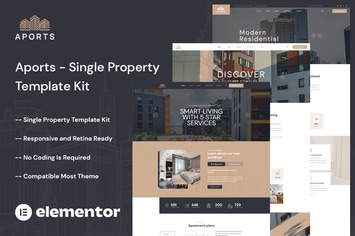
Aports - Single Property Elementor Template Kit
by surisoft

Podover - Podcast Elementor Template Kit
by surisoft

Wellfood - Fast Food & Restaurant Elementor Pro Template Kit
by surisoft

Retirio - Architecture & Interior Elementor Template Kit
by surisoft

Decho - Car Repair Mechanic Elementor Template Kit
by surisoft
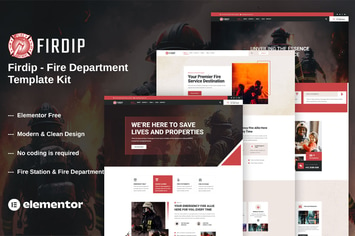
Firdip - Fire Department Elementor Template Kit
by surisoft
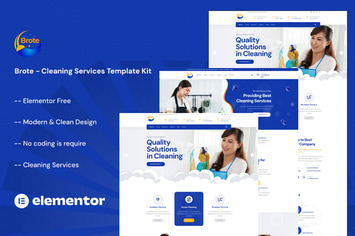
Brote - Cleaning Services Elementor Template Kit
by surisoft

Aivons - Business Consulting Template Kit
by surisoft
You May Also Like
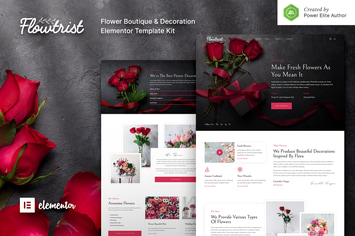
Flowtrist – Flower Boutique & Florist Elementor Template Kit
by jegtheme

Sounder
by ThemeREX

Empathy - Animated vCard WordPress Theme
by pixelwars
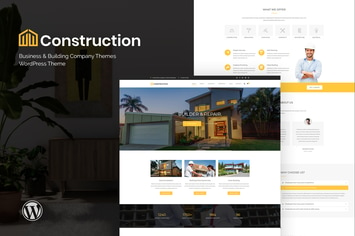
Construction - Business & Building Company WordPre
by ThemeModern

Filmic - Movie Studio & Film Maker WordPress Theme
by BoostifyThemes
Trebol - Minimal & Modern Multi-Concept WooCommer
by nanoagency

Nikah | Wedding Organizer & Planner WordPress
by themesawesome
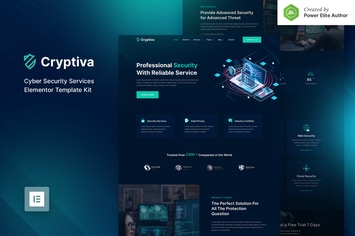
Cryptiva – Cyber Security Services Elementor Template Kit
by jegtheme